Test suites
Test suites page allows users to create and manage test suites, which are used to package test cases. The list shows each suite's name, directory, tags, test count, quality, last and next execution, schedule, owner, visibility, alert mode and severity, along with any custom field columns. Most columns can be sorted and filtered, and the visible columns can be customized from the table settings in the table header. The toolbar also has a free-text search over the list, and a set of filters can be saved, restored from the saved sets, copied as a link or cleared from the filter row.
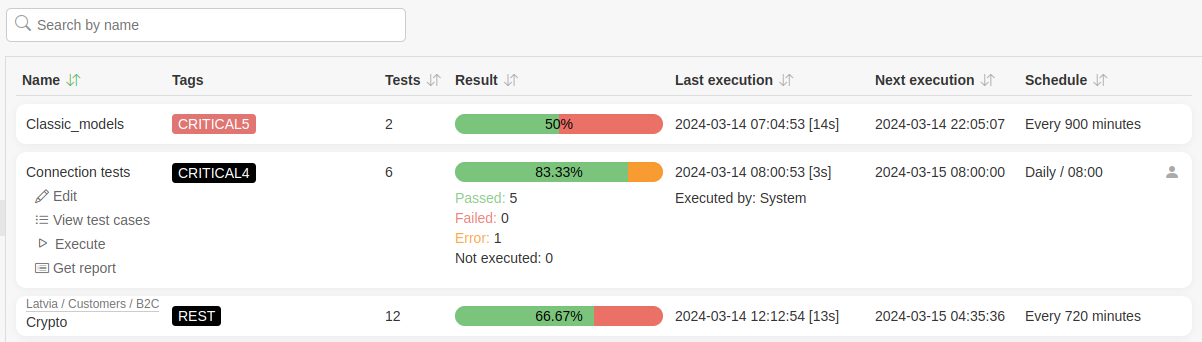
The Visibility column marks private test suites with a person icon  and read-only test suites with a book icon. Hovering the icon shows which one applies.
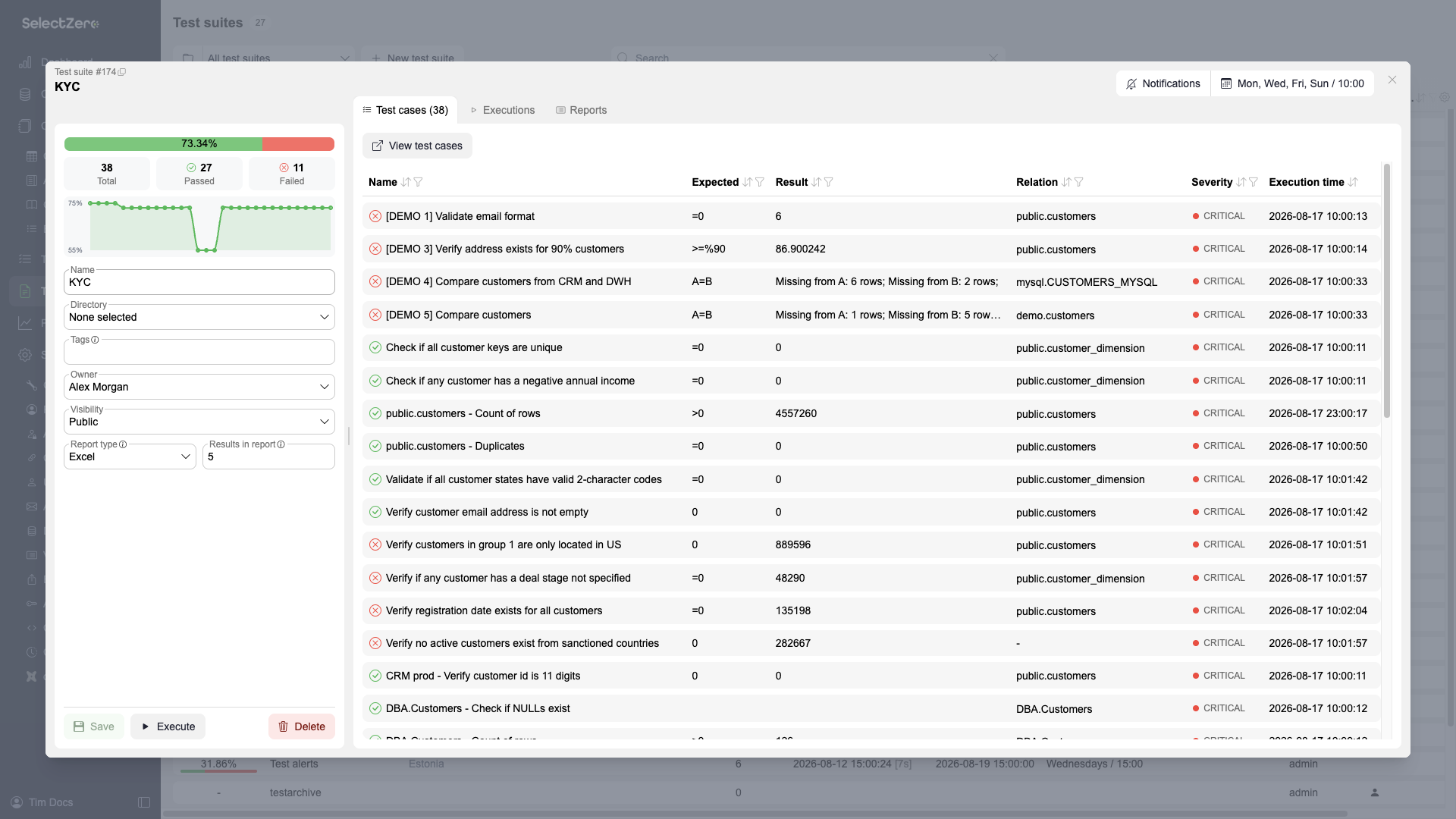
Clicking on a test suite opens its detailed view:
The sidebar shows the suite's data quality (current split and history trend) and its properties, with Save, Execute (requires the execute privilege) and Delete buttons below.
The main area has the Test cases, Executions and Reports tabs: test cases in the suite (with a link to the Test cases page), past executions with their results, and generated reports. The Test cases tab can be narrowed by name, expected value, result and relation, and by a Severity multi-select.
From the view's header the user can copy a direct link to the suite, configure alerts via the Notifications segment and set the schedule via the Schedule segment.
Adding a new test suite
Press the "New test suite" button in the toolbar
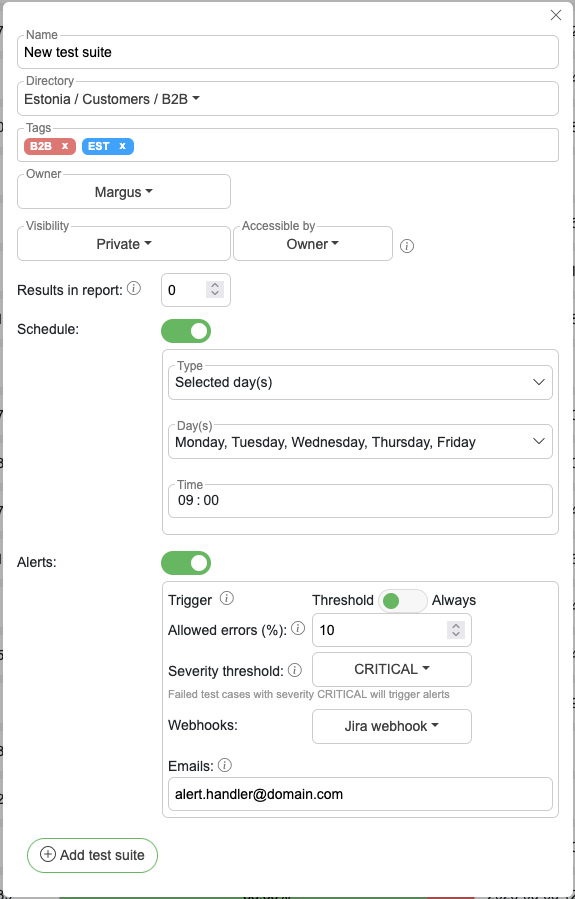
Fill in the test suite properties
Click on "Save" button
Test suite properties
Name – display name for test suite
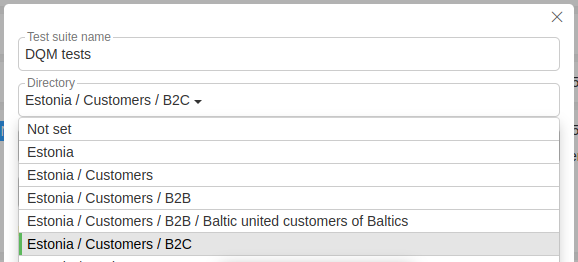
Directory – directory of the test suite
Tags – see chapter Adding tags to a test suite
Owner – who can edit this test suite
Visibility
Public – accessible to all users
Private – visible and editable to owner and users with role(s) selected in "Accessible by"
Read-Only – visible to everybody, but editable only by owner and users with role(s) selected in "Accessible by"
Accessible by – role(s) that can access the test suite (shown when visibility is Private or Read-Only)
Report type – format of the generated report (HTML or Excel). Set to Excel, it also makes the report attached to the failure alert emails of the suite's test cases Excel, overriding their own Report type; HTML leaves each test case's own choice. It does not change the email body or webhook payloads
Results in report – how many sample result rows (0 to 1000) failed test cases contribute to the HTML report and to webhook payloads (
${rows}). The samples are kept in local CSV filesCustom fields – every custom field enabled for the entity type
Test suite
Alerts
Alerts are configured through the Notifications segment in the detailed view's header:
Type
Never – no alerts are sent
Threshold – alert is triggered when the percentage of failed test cases exceeds the Allowed errors value
Always – alert is triggered on every scheduled or API execution
Allowed errors (%) – alert is triggered if more than this percentage of test cases fail (0 means an alert is sent if any test case fails). Only shown when Type is Threshold
Severity threshold – INFO, WARNING or CRITICAL. Failed test cases with the selected severity or higher trigger alerts (e.g. WARNING triggers alerts for WARNING and CRITICAL test cases). Only shown when Type is Threshold
Webhooks – one or more webhooks to notify when the alert is triggered
Recipients – existing users (with email) or custom email addresses to notify when the alert is triggered
When alerts are sent
Alerts are sent only for executions started by the suite's schedule or through the API (POST /api/v1/testsuites/execute). Running a suite from the UI sends no alerts: neither the suite's own alert nor the failure alerts of the test cases in that run. To check that the alert setup works, run the suite through the API or let the schedule run it.
Schedule
The Schedule segment in the detailed view's header sets when the test suite should be executed. The segment is visible to every user who can see the suite; editing requires edit access to it.
Deleting a test suite
Open the test suite and click the "Delete" button below its properties
When prompted with following message
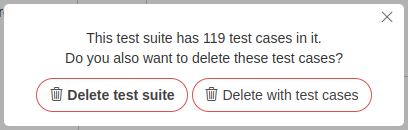
Delete test suite only – only test suite will be deleted. All tests will remain without a test suite reference
Delete with test cases – all tests that are in the test suite will also be deleted
Modifying a test suite
Click on the test suite to open its detailed view
Modify properties that need to be changed
Click "Save" button
Adding tags to a test suite
Open the test suite you want to change tags on
Type a tag name into the "Tags" field and press Enter to add it. Click the × on a tag to remove it
Click on a tag to change its color (green, blue, red, black or grey)
Press "Save" button
Directories
Each test suite can be assigned into a custom directory to create a directory-based structure for test suite management. The directory dropdown in the toolbar filters the list to the selected directory. The folder button next to it opens the Test suite directories modal, where directories and sub-directories can be created, edited and deleted.
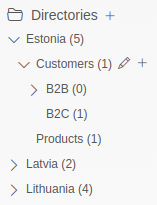
Adding test suites to directories
A test suite is assigned to a directory with the Directory field in its properties, either when creating the suite or when editing it later.