dbt setup
dbt (data build tool) integration allows you to import metadata, lineage, and test results from your dbt projects into SelectZero.
Three configuration modes are supported:
Cloud - connects to dbt Cloud via the Discovery and Admin APIs
Artifacts - reads dbt artifacts (manifest.json, run_results.json, catalog.json) from an S3-compatible bucket
Fabric Lakehouse (OneLake) - reads the same artifacts from a Microsoft Fabric lakehouse Files area over the OneLake (ADLS Gen2) API
Adding a dbt project
Navigate to Settings → dbt and click "Add project".
Cloud mode
Cloud mode connects to dbt Cloud using the Admin API (for project/environment discovery) and the Discovery API (for manifest, catalog, and run results).
Prerequisites
A dbt Cloud account with at least one project and environment
A dbt Cloud personal access token or service token with read access
Creating an API token
Log in to dbt Cloud
Navigate to Account Settings → API tokens
Create a Service token with at least the following permissions:
Metadata Only - required for the Discovery API
Read-only - required for project and environment listing
Copy the generated token
Configuration
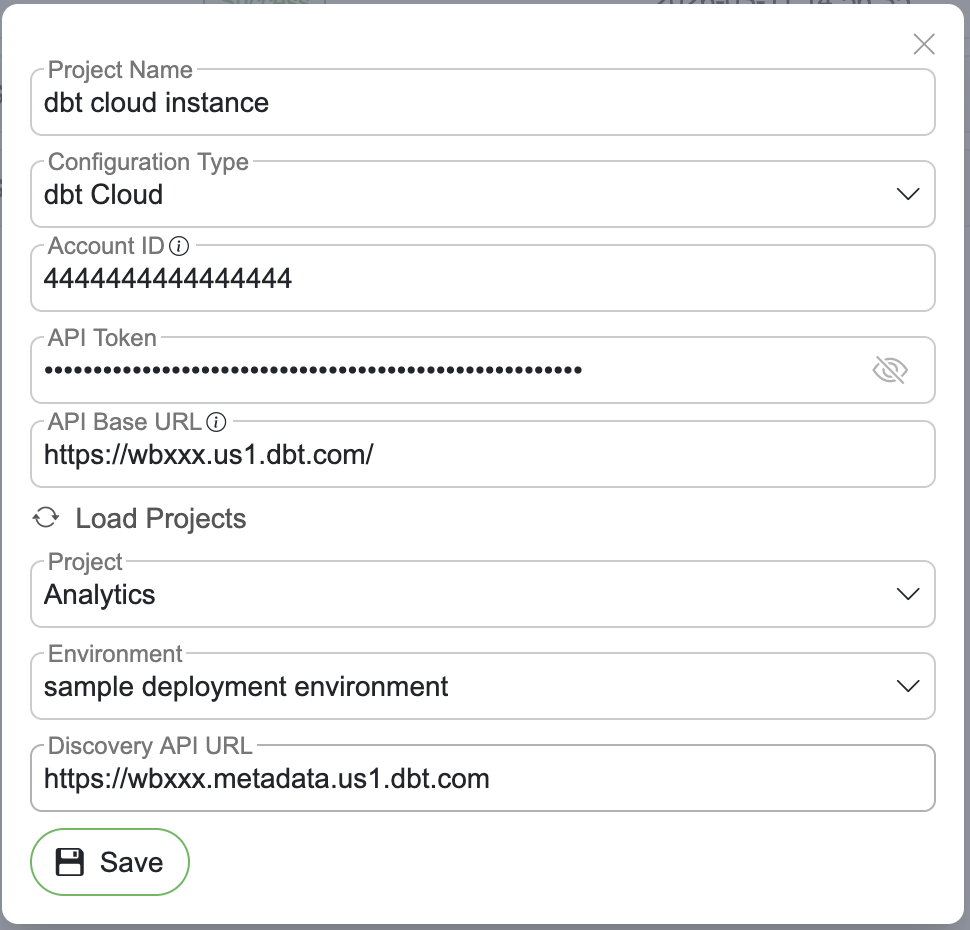
Enter a Project Name
Select dbt Cloud as the Configuration Type
Fill in your Account ID - found in the dbt Cloud console (Account settings → Account)

Enter the API Token from the previous step
Set the API Base URL (prefilled with
https://cloud.getdbt.com)
Click "Load Projects" to validate credentials and load available projects
Select a Project from the dropdown
Select an Environment - production environments are auto-selected when available. Until one is chosen the form warns that the project will not sync
Set the Discovery API URL (prefilled with
https://metadata.cloud.getdbt.com/graphql)
Optionally pin a Warehouse Connection (see Warehouse connection)
Click "Save", or "Test Connection" first to check the credentials without storing anything
Artifacts mode
Artifacts mode reads dbt artifacts directly from an S3-compatible object storage bucket. This is useful for self-hosted dbt Core setups where artifacts are uploaded to S3 after each run.
Expected bucket structure
Each run folder should contain at least manifest.json. The run_results.json and catalog.json files are optional but recommended.
Configuration
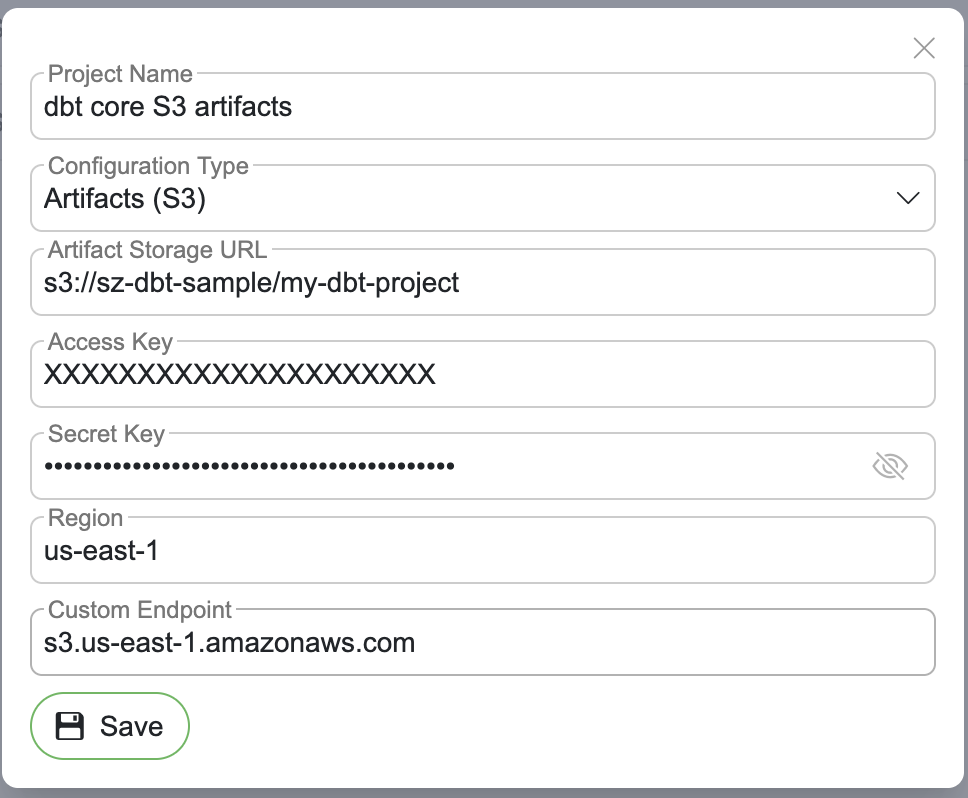
Enter a Project Name
Select Artifacts (S3) as the Configuration Type
Set the Artifact Storage URL - S3 path to your artifacts folder (e.g.
s3://bucket-name/path/to/artifacts)Enter Access Key and Secret Key for S3 authentication
Optionally set Region (defaults to
us-east-1)Optionally set a Custom Endpoint for S3-compatible storage (e.g. MinIO)
Optionally pin a Warehouse Connection (see Warehouse connection)
Click "Save", or "Test Connection" first to check the credentials without storing anything
Fabric Lakehouse mode
Fabric mode reads dbt artifacts from a Microsoft Fabric lakehouse Files area (OneLake). OneLake is not S3-compatible, so SelectZero talks to the OneLake ADLS Gen2 (DFS) API and authenticates with an Azure AD service principal.
How artifacts are detected
Point the OneLake Path at the folder that holds your dbt artifacts and SelectZero finds the rest:
manifest.json(with optionalrun_results.json/catalog.json) directly in the folder is treated as the latest run. This is the common case - most Fabric setups keep only the latest dbt output (the project'starget/folder).Any subfolder that also contains a
manifest.jsonis read as an additional run, so archived per-run folders still work and can be mixed with a latest-in-root layout.Subfolders without a
manifest.json(e.g.images,sample_datasets) are ignored, so you can point at a shared parent folder.
Only manifest.json is required; run_results.json and catalog.json are optional (catalog.json is produced by dbt docs generate).
Prerequisites
An Azure AD service principal (app registration) with a client secret
The service principal granted access to the Fabric workspace (so it can read the lakehouse Files)
Configuration
Enter a Name for the project
Select Fabric Lakehouse (OneLake) as the config type
Set the OneLake Path to the folder holding your artifacts, e.g.
https://onelake.dfs.fabric.microsoft.com/<Workspace>/<Lakehouse>.Lakehouse/Files/dbt/my-project/Enter the Tenant ID, Client ID, and Client Secret of the service principal
Optionally pin a Warehouse Connection (see Warehouse connection)
Click "Save", or "Test Connection" first to check the credentials without storing anything
Warehouse connection
All three configuration types end with an optional Warehouse Connection. Without one, SelectZero resolves the connection each dbt model belongs to by database name, across all connections. Pinning a connection does two things:
It decides between connections that share a database name.
It keeps the sync on that connection's server: models resolve only to connections with the same server address (or to the pinned connection itself). A model whose database exists only on another server is not linked, so the sync writes no descriptions, lineage, test cases or custom fields there.
Pin a connection when several connections share a database name, or when the dbt project should only ever update one warehouse.
If the pinned connection is deleted later, syncs match models by database name across all connections again, as without a pin, and the sync finishes with a warning to choose a connection.
Custom fields from dbt
Turn on Import dbt tags and meta as custom fields to bring the tags, meta and owner your dbt team already curates into the catalog as custom fields, where they can be searched, filtered and reported on. It is off by default and applies to all three configuration types.
On each sync, for every dbt model, seed, snapshot and source that resolves to a catalog object, and for every column the dbt project declares, SelectZero reads the tags and meta set directly on it and under its config: (where dbt 1.10 and later keep column tags and meta), plus a source block's meta. On a clash, meta set directly on the node or column wins over config::
dbt | Custom field | Type |
|---|---|---|
| dbt tags, one option per tag | Multi-select |
a | dbt: <key> | Free text |
a | dbt: <key>, one option per value | Multi-select |
a nested | dbt: <key> as JSON text, only when the key is listed | Text area |
Fields are created the first time they are needed, bound to objects, columns or both depending on where the key appears, and marked dbt in the custom field list. A field's type is fixed when it is created; a value of another shape is converted (a single value becomes one option, a list becomes comma-separated text) and the sync reports a warning.
Meta keys to import narrows the import to the listed top-level keys. Leave it empty to import every key with a text, number, true/false or list value.
dbt is the source of truth for its fields. Values are replaced on every sync, a value removed in dbt is cleared, and a value edited by hand is overwritten. Renaming a dbt field is safe; it keeps syncing.
Owner:
owneris imported as dbt: owner like any other meta key. The Owner field of catalog objects is not touched.A custom field you created with the same name as a dbt field (for example dbt: domain) is never touched; that key is skipped and the sync reports a warning.
Turning the option off, or removing a model from the dbt project, leaves the values already imported in place.
While the option is on, a dbt field you delete, or an entity type you remove from it, comes back on the next sync. To stop importing a key, list the keys you want under Meta keys to import, or turn the option off and then delete the field.
Only what changed is written, and changes are recorded in the object's history as sync updates. If the import fails, the rest of the sync still completes and the project's last sync message shows the problem.
Syncing
After a project is configured, click "Sync Now" to trigger a sync. The sync process:
Fetches artifacts - retrieves manifest, run results, and catalog from the configured source
Imports metadata - creates enrichment objects for dbt models, sources, seeds, and snapshots
Resolves warehouse connections - matches dbt models to existing SelectZero database connections by database name
Builds lineage - creates column-level lineage relations between dependent models using passthrough matching
Imports test results - stores dbt test run results with status, execution time, and compiled SQL
Imports test cases - dbt tests are registered as SelectZero test cases with their source set to
DBT, so they appear alongside native test cases in the Test cases libraryImports custom fields - when enabled, writes dbt tags and meta onto the matched objects and columns (see Custom fields from dbt)
The sync runs in the background, so you can close the panel or leave the page while it works. The status pill shows Syncing until it finishes, and Sync Duration reports how long the last completed sync took, whether it succeeded or failed. Only one sync per project runs at a time; starting another while one is in progress is rejected.
Real-time sync via webhooks
Instead of waiting for the next scheduled sync, each dbt project exposes a webhook endpoint that an external system can call to trigger an immediate incremental sync. The project details panel shows the Webhook URL for the project (with a copy button) and a key icon for managing the webhook secret. Both Cloud and Artifacts projects support this, but they use the secret in opposite directions.
Cloud projects
For Cloud projects the webhook is driven by dbt Cloud: dbt Cloud signs each delivery with a shared secret and SelectZero verifies the signature before parsing the payload.
In dbt Cloud, go to Account Settings → Webhooks → Create New Webhook
Select the Run completed event for the project/environment SelectZero is synced to
Set the Endpoint to the Webhook URL shown in the SelectZero project details
Copy the webhook secret dbt Cloud displays after creating the webhook
Back in SelectZero, click the key icon next to the webhook URL, paste the dbt Cloud secret, and click Save
After this, every completed dbt Cloud run triggers an incremental sync that refreshes run results, test outcomes, and test cases without manual intervention. The project status pill switches from "Not generated" to "Configured" once a secret is stored.
Artifacts (Core) projects
For Artifacts projects the direction is reversed: SelectZero issues a secret that the external system (typically a dbt Core orchestrator like Airflow, GitHub Actions, or a Lambda) must present when calling the webhook URL.
In SelectZero, open the dbt project and click the key icon next to the webhook URL
Click Generate secret - SelectZero generates and stores a new bearer token and shows it once for you to copy
In your orchestrator, configure an HTTP step that runs after each dbt invocation and uploads its artifacts. Have it call the Webhook URL with header
Authorization: Bearer <secret>The webhook trigger returns immediately; SelectZero then re-reads the latest run folder from the configured S3 bucket and updates resources, runs, and test cases
The secret is stored as a hashed value and cannot be retrieved later, so make sure to copy it during generation. Click the key icon again and choose Regenerate to rotate it - this immediately invalidates the previous secret.
Deleting a project
Deleting a project (Settings → dbt → the project → Delete) removes its enrichment data, its pipeline runs, its dbt test cases and the lineage relations its syncs created. Custom fields imported from dbt, and the values they hold, stay in place: they are shared by every project that imports them.
If a delete is interrupted, the project stays in the list marked as interrupted; deleting it again finishes the job.
How metadata works
Objects
Each dbt model, source, seed, and snapshot is imported as an enrichment object. The following metadata is captured:
Model name, description, tags, and owner
Materialization strategy (table, view, incremental, ephemeral)
Raw and compiled SQL
Package name, access level, version, and group
Warehouse matching
dbt models reference a database and schema in their configuration. SelectZero matches these references against existing database connections by database name. When a match is found, the dbt model is linked to the corresponding connection, schema, and object - enabling catalog cross-referencing.
Columns
Column metadata is sourced from the dbt manifest (column descriptions, data types, tags, constraints) and enriched with catalog data when available (data types, comments).
How lineage works
dbt lineage is built from each model's compiled SQL first: SelectZero parses the SQL and links every output column to the columns it is computed from, through joins, CTEs and every branch of a UNION. A sync with nothing changed in the project leaves the lineage exactly as it is.
For columns the SQL does not trace (a model without compiled SQL, or SQL that cannot be parsed), lineage falls back to passthrough column matching: when a dbt model depends on another model (via depends_on), SelectZero compares the column names of both tables in the warehouse and links columns with matching names as directed lineage relations. A column the SQL already traced never gets a name-matched relation on top.
Passthrough matching works well for models that pass columns through without renaming. The compiled SQL of each model is stored as a reference for each lineage relation, allowing users to trace the origin query.
Passthrough lineage is created between models where:
Both the source and target models are resolved to warehouse connections
Both models have metadata synced in SelectZero
Matching column names exist in both models
Browsing dbt resources
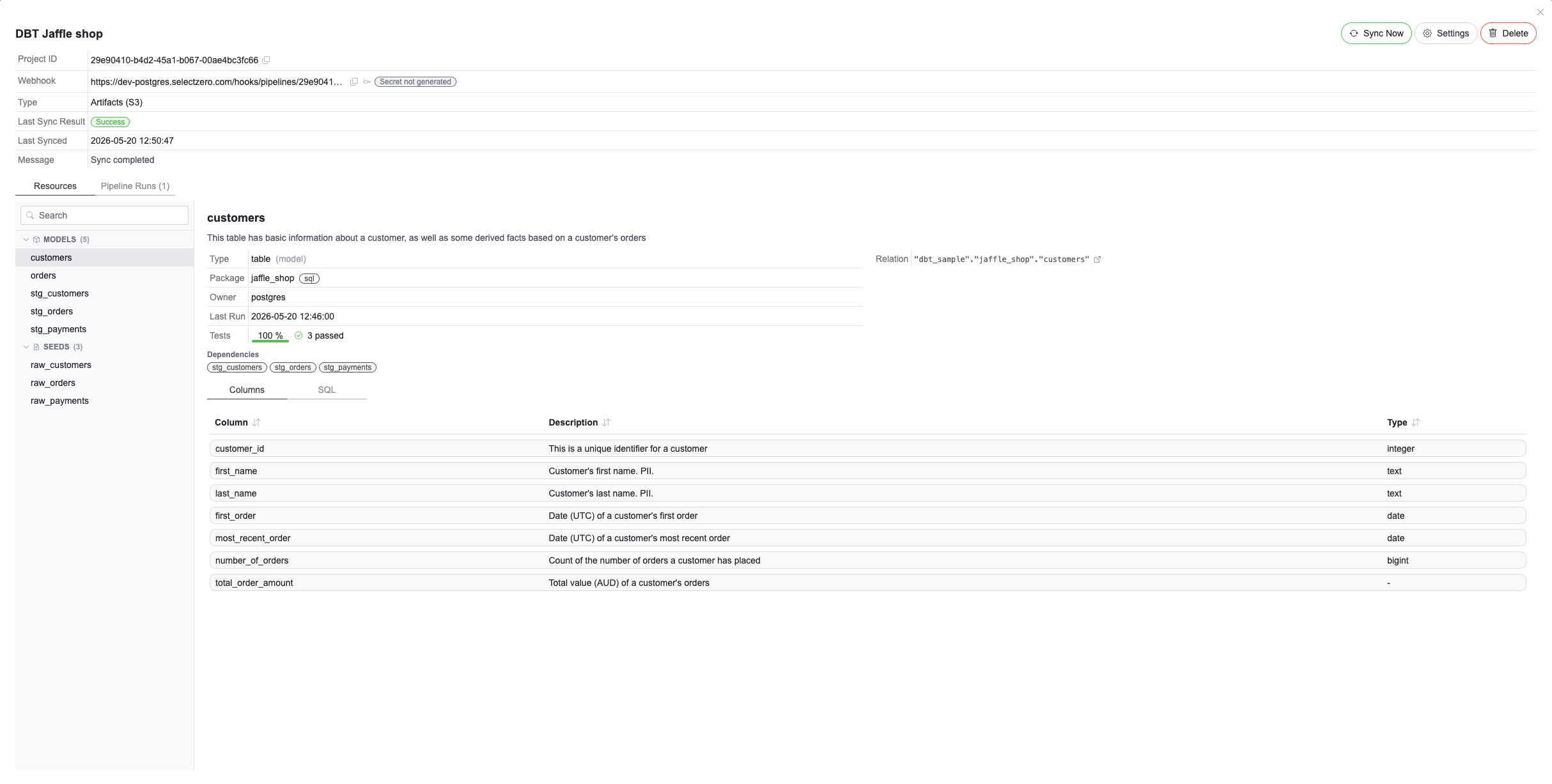
Each dbt project has a Resources tab on its detail page (Settings → dbt → click a project), giving a docs-like browser of every artifact imported from the project. It sits alongside the Pipeline Runs and Tests tabs, which carry their own counts.
The view is split into two panes:
Left pane - a searchable tree grouped by resource type, each group showing how many it holds. Type the model/source/seed name into the search box at the top to filter the list. Click a group header to collapse or expand it.
Right pane - the selected resource's full metadata.
Resource types appear in this order, and only when the project actually contains them, so a project without snapshots simply has no Snapshots group:
Models - dbt models (any materialization)
Sources - declared sources backing the project
Seeds - CSV seeds
Snapshots - snapshot definitions
Exposures - declared exposures (dashboards, reports, etc.)
The detail pane for a selected resource shows its description, then:
Type and Package with the materialization, Owner, and Last Run
Tests - the pass rate as a bar, with the passed and failed counts beside it
Relation - the warehouse table the resource resolved to, linking to the matched catalog object
For sources, Source, Source description, Loader and Freshness (for example "warn after 12 hours, error after 1 day"); for exposures, Exposure type, Maturity, URL and Owner email
Tags and Meta - the tags and the custom metadata the YAML sets under
meta:Dependencies - the resources it is built from
Columns, SQL and Tests tabs below, listing each column with its description and type, the resource's SQL, and its individual test results
Test results
dbt test results are imported and stored as pipeline runs. Each run contains:
Run status - the build status: FAILED when a model, seed or snapshot failed or errored, SUCCESS otherwise. Failing tests do not change it
Counts - the Models column counts model, seed and snapshot results with their passed, failed and errored numbers; the Tests column counts the test results, with how many failed, warned or errored beside it
Generated timestamp - when the dbt run was executed
Elapsed time - total run duration
Individual results - each test/model result with status (pass, fail, error), execution time, failure message, and compiled SQL
Test results can be viewed by clicking on a project and navigating to the Runs tab. Clicking on a specific run shows detailed results with expandable test information.
Up to 50 historical runs are retained per project.
dbt and lineage
When a dbt model is matched to a SelectZero catalog object, that object is marked as dbt-enriched. In the Lineage graph, dbt-enriched nodes display a small dbt badge in the corner of the object (and column-level) tile. Clicking the badge opens the Resources browser with the matching dbt resource pre-selected, so you can review the model's SQL, tests, and metadata without leaving the lineage view.
The badge is only shown when the node has an active dbt enrichment - disabled or removed projects no longer mark their objects.