Import
The Import feature allows to import data into the system by uploading CSV or Excel files. The catalog import is opened from the "More" dropdown on the right of the toolbar on the Catalog page's tabs.
Catalog import modal consists of: 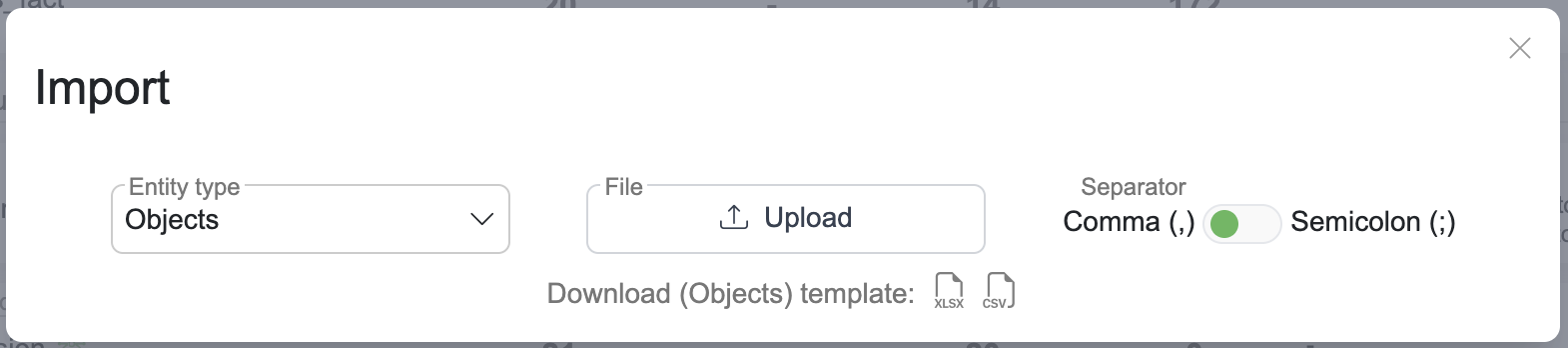
Fields
Entity type
Business rules - Catalog business rules (Catalog import does not support linking test cases, can be done with API)
owners column is optional
A new rule with no known owner gets the importing user as owner
An existing rule with no owner given keeps its current owners
An existing rule with no known role given keeps its allowed roles
Unknown owner and role names are skipped with a note
An existing rule the importing user cannot edit cannot be imported and stays unchanged
The preview of an existing rule with no owner given shows its current owners
Objects - Catalog objects descriptions
Attributes - Catalog attributes (columns) descriptions
Attribute relations - Relations between attributes
Attribute relations (SQL) - Relations between attributes and query evaluation functionality
Attribute term relations - Term labels on attributes
Terms - Business glossary terms
Term relations - Relations between glossary terms
Alert recipients
Terms, Objects and test case files set alert recipients in two columns, alertEmails for addresses and alertWebhooks for webhook names, several values separated by ;. A cell with values replaces that kind of recipient: anyone not listed is unsubscribed.
Value | What the import does |
|---|---|
| Subscribes the address. An existing subscriber keeps their scopes, a new one gets Changes (Failure on test cases) |
| Subscribes the address with exactly the Changes scope |
| Subscribes the webhook with Changes and Quality, notified from a 10% drop |
| Subscribes the webhook with Quality only, notified about any drop |
| Subscribes the webhook with Quality only, keeping its current minimum drop (any drop if new) |
| Removes every recipient of that kind: all addresses in |
blank cell | Leaves that kind of recipient untouched |
Scopes go in brackets after the name, separated by
|, in any case:AUDIT= Changes,FAILURE= Failure,QUALITY= QualityTerms offer Changes; Objects offer Changes and Quality; Test cases offer Changes and Failure
QUALITY=<n>sets the minimum drop in percent, from0to100;0means any dropA scope the entity type does not offer is dropped with a note; the recipient imports with the rest
Only the last bracket group is read as scopes, so a webhook named
Ops [EU]is writtenOps [EU][AUDIT]Exports write every recipient's scopes, Quality always with its minimum, so an exported file re-imports as-is
A value with an address that is not valid, a webhook name that matches no webhook or a scope that is not valid is skipped with a note, shown in the preview (after the import for test cases), and the rest of the row imports
The cell replaces that kind of recipient, so a skipped recipient who was subscribed is unsubscribed when the cell still holds another usable value; a cell left with no usable value changes nothing
A Terms file with the Comma separator, subscribing two addresses and removing all webhooks:
A test case file (test case CSV files are always comma-separated), alerting on failures and changes:
With the Semicolon separator, a cell holding several values has to be quoted: "ops@example.com;finance@example.com[AUDIT]".
File
Import can be done from both CSV and Excel files
You can get the import template with required headers (including custom fields) in your preferred format: 
Separator
If you are using CSV files, you can also choose your separator:
Comma (,) - Values are separated by commas.
Semicolon (;) - Values are separated by semicolons.
File Upload
Upload File: Uploading import template will preview all entities that are available for import.
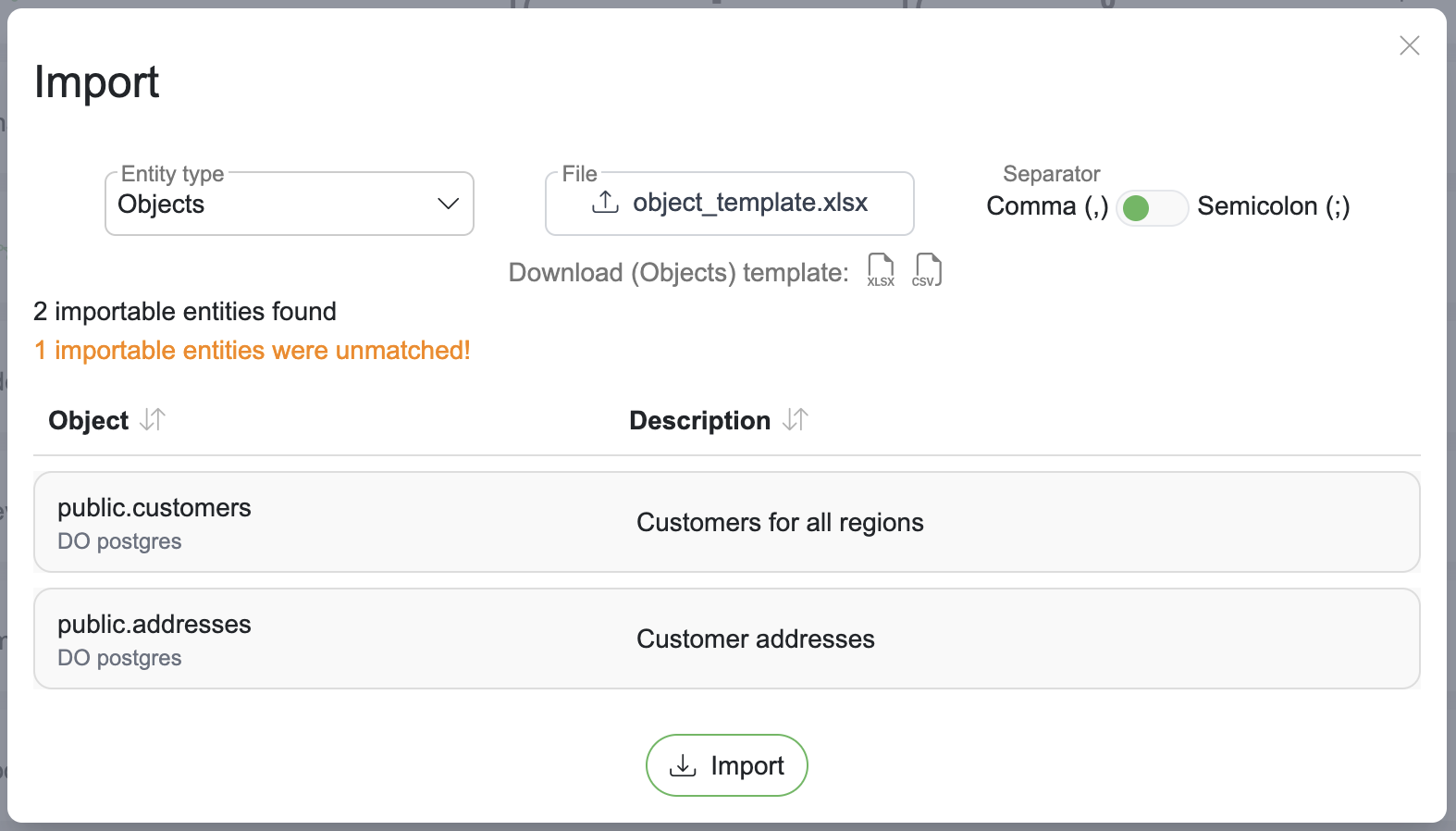
Under the preview table, a summary counts what the file contains:
"N importable entities found" - the rows shown in the preview table, which is what pressing Import will write.
"N rows cannot be imported" (red) - the row is left out entirely.
"N rows will be skipped" (amber) - the row repeats an earlier row for the same entity, which is imported once.
"N rows will be imported with notes" (grey) - the row imports with an adjustment: the importing user becomes the owner when none is given, or an unknown owner or role name, an
alertEmailsaddress that is not valid, analertWebhooksname that matches no webhook or a scope that is not valid is left off.
Whenever the file has any of these rows, a Show details button appears beside the counts.
Import details
Show details opens the Import details modal, listing the reported rows in file order so the file can be corrected from top to bottom:
Line - the line number in the uploaded file, counting the header as line 1, as a spreadsheet shows it in its row gutter
Reason - every problem the row has. A term that could not be found suggests the glossary-qualified spelling, and a cell that could not be read names the column and the rejected value
The remaining columns are the file's own headers, showing each row exactly as it was uploaded
The icon beside the line number marks the outcome: red triangle - cannot be imported, amber triangle - will be skipped, grey info - imported with a note
A row is reported for one of these reasons:
A cell could not be read - a number, an identifier or a true/false column holding something else. The row cannot be imported
A reference could not be resolved - an unknown connection, object, attribute or term. The row cannot be imported
The entity cannot be edited - an existing business rule the importing user cannot edit. The row cannot be imported
The row repeats an earlier one - the row will be skipped
A value was adjusted - a defaulted owner, or an owner, role,
alertEmailsaddress,alertWebhooksname or scope that was left off. The row imports with a note
One bad row never stops the rest of the file from importing.
After the import
The checks above run before anything is written. A row can still fail at the point of import - a relation that already exists, or one that would create a cycle. When that happens an "Entities that were skipped or failed" modal opens by itself after the import, naming each entity and the problem behind it. The import dialog deliberately stays open underneath, so closing the modal does not take the list with it.
Evaluate query
To open query evaluate modal, choose entity type "Attribute relations (SQL)" and press "Insert from query" button 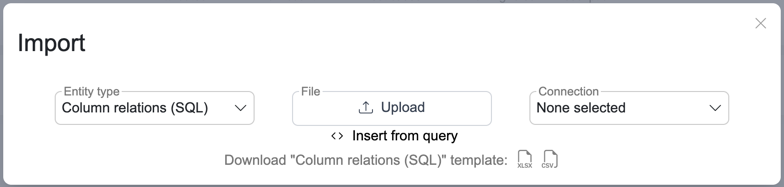
Lineage from query
To accurately evaluate data lineage, select a database connection and insert SQL query. SelectZero is able to parse lineage from various queries containing INSERT, UPDATE, JOIN statements, parsing abstract syntax tree from SQL queries. 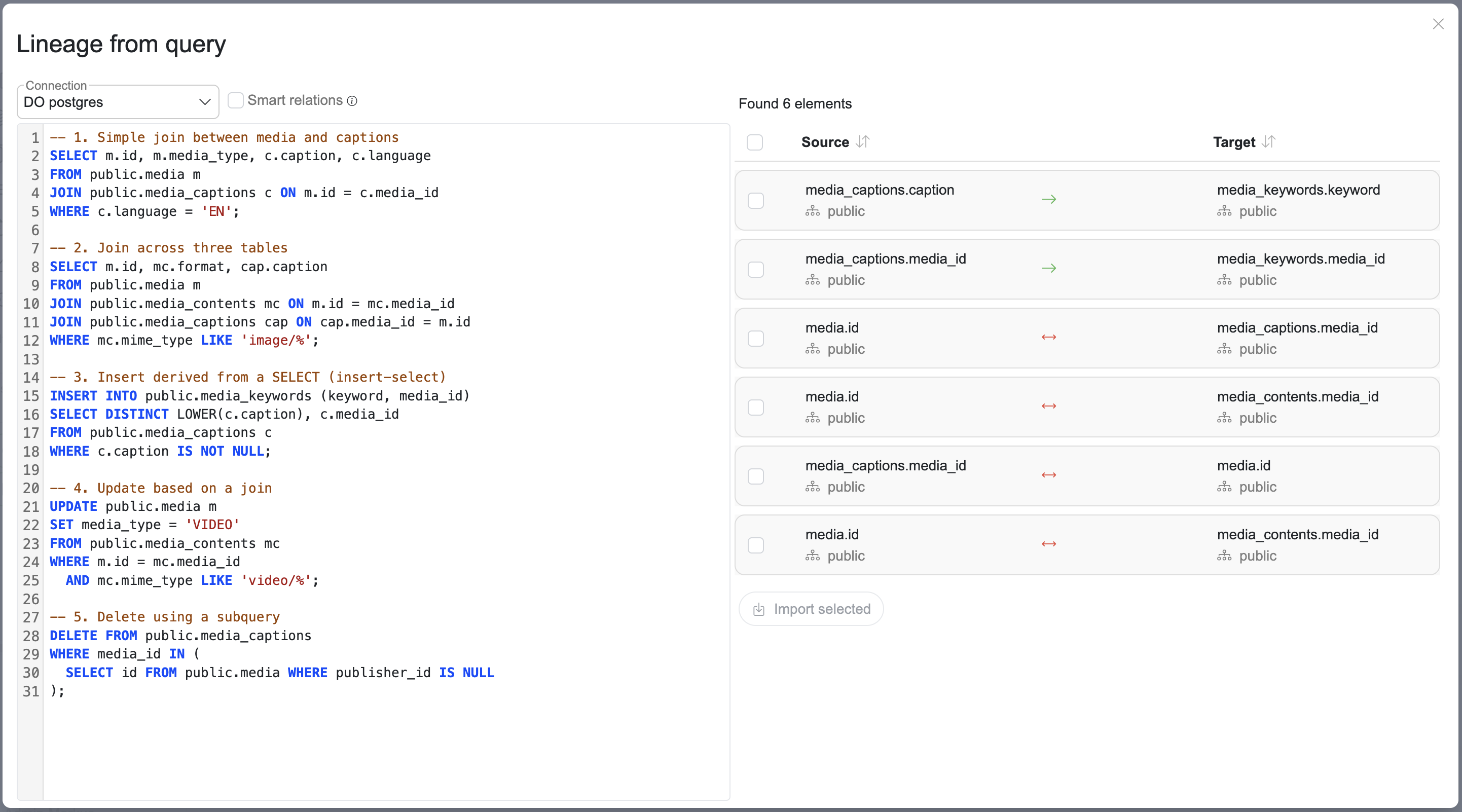
Smart relations
In case your queries contain objects which are missing metadata loaded into the platform, you can use smart relations. In case SelectZero counters missing objects such as temp tables, it can still stitch together lineage which is connected to existing metadata objects through N temporary objects.
You can enable this by checking the 
Origin query check
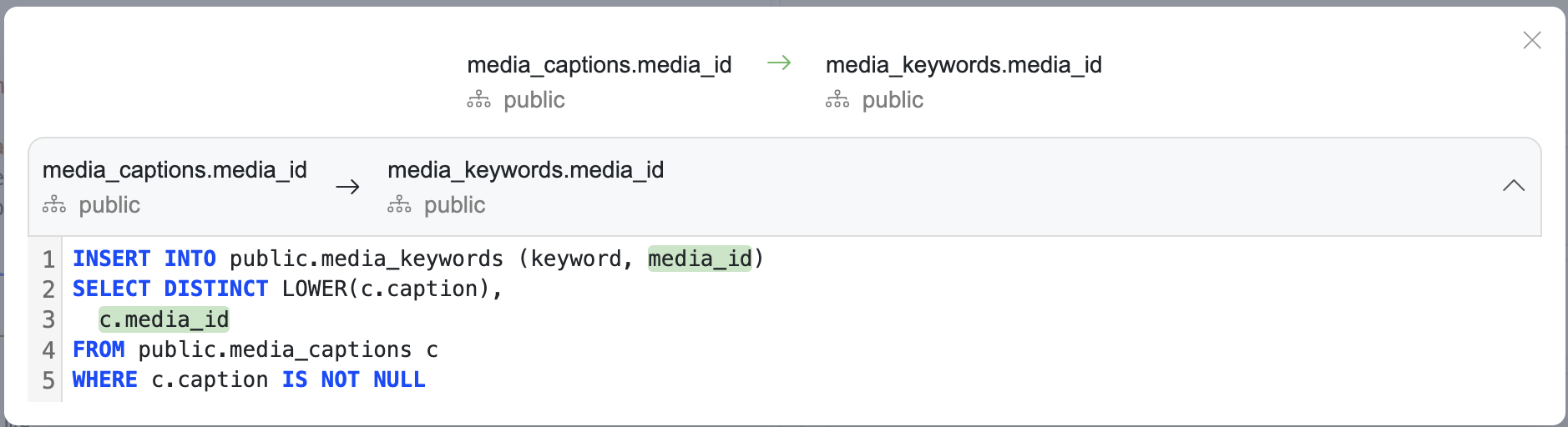
You can also check the origin query by clicking on the relation type arrow