SharePoint setup
Cloud
Creating Azure AD app for SharePoint access
Log into Azure portal and search for "Microsoft Entra ID"
Under "Manage -> App registrations" create a new registration
Name - choose an app name for integration with SelectZero
Supported account types - Choose "Accounts in this organizational directory only (YourCompany only - Single tenant)"
Redirect URI - can be left empty
Navigate to "Manage -> API Permissions"
Add a new permission
Choose "Sharepoint"
Choose "Application permissions"
You can either choose "Sites.Read.All" (Will enable read rights to all SharePoint sites) or "Sites.Selected" (You will also need to enable site access)
From "Configured permissions" view you also have to "Grant admin consent for YourCompany "
Navigate to "Overview"
Copy "Application (client) ID" and "Directory (tenant) ID" which we will need for SelectZero integration
Enabling Site specific access for SharePoint
Navigate to your SharePoint site (accessible for admins)
Enter following data
App Id - From previous step and press "Lookup"
Title - Will be automatically filled
App Domain - Enter the domain where SelectZero is hosted
Redirect URL - Enter the domain where SelectZero is hosted
Permission Request XML
Adding SharePoint connection
From connections page add a new SharePoint connection
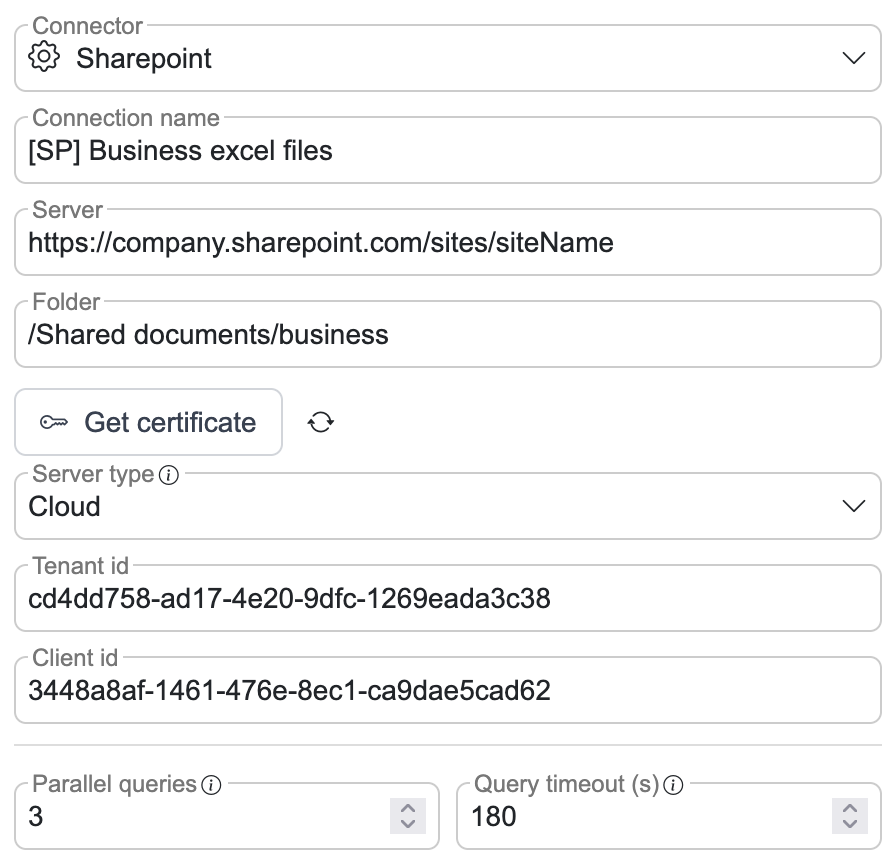
Connection name - Name for connection itself
Server - SharePoint URL with site reference
Folder - Folder reference (Starts with '/Shared documents')
Server type - Cloud
Tenant id - Directory ID from previous step
Client id - Application ID from previous step
Read subfolders - Also read the workbooks in the folders below Folder, see Reading subfolders
Folder depth - How many folder levels below Folder are read, from 1 to 20 (default 10)
After connection is added, certificate key pair is automatically generated
Download connection public certificate from connection view
Uploading certificate to Azure
After we have downloaded our public certificate we will navigate back to Azure portal "Microsoft Entra ID"
Under "Manage -> App registrations" find your app registration
Navigate to "Certificates & secrets"
Select "Certificates" tab
Press "Upload certificate"
Upload the public certificate from SelectZero SharePoint connection
Description can be left empty
After certificate upload you can go back to your SharePoint connection and press "Test" button to check connection (Azure side certificate upload can take a bit of time before connection is reached)
If certificate is successfully added, you should see "Connection successful" message
Sharing one certificate between connections
A SharePoint connection reads one folder, and with Read subfolders the folders below it. To read another site, or a folder outside that tree, through the same Azure app, add a second connection. To spare uploading a new certificate to Azure for every connection, an administrator can generate one shared certificate, upload it to the app registration once, and choose it in the Certificate section at the end of each connection's form. See Connection certificates.
Reading subfolders
With Read subfolders switched on, one connection reads every workbook in its folder and in the folders below it, down to Folder depth levels. There is no need for a connection per folder.
Each workbook becomes a schema named by its folder path and file name, lowercased, with spaces and punctuation replaced by underscores.
Finance/Q1 Reports/Analytics Performance.xlsxis listed asfinance/q1_reports/analytics_performance. A workbook directly in the connection's folder keeps its plain name, such asbudget.In test case SQL, a schema containing
/has to be double-quoted, for exampleSELECT * FROM "finance/q1_reports/analytics_performance".Sheet1. SQL generated by SelectZero already quotes it.SharePoint's own
_vti_folders are skipped. Folders of any name,Formsincluded, are read.A folder the app cannot read is left out and named as a warning, both on the connection test and when you update the schema list. The rest of the library keeps working, and schemas already listed from that folder stay in the list.
Moving a workbook to another folder, or renaming a folder, changes its schema name. The old schema no longer finds the workbook, so test cases that use it have to be pointed at the new schema.
Switching Read subfolders off, or lowering Folder depth, stops the queries on schemas from the folders no longer read: a test case on one says so. Those schemas stay in the list until you delete them, and switching the option back on makes them work again.
Read subfolders is on for a new connection. A connection created before this option existed keeps reading only its own folder until you switch it on, so its schemas do not change.
On-premise SharePoint setup
On-premise Sharepoint uses NTLM authentication with domain account. Supported Sharepoint versions are:
Sharepoint server 2016
Sharepoint server 2019
Sharepoint server SE
Create a service account
In Active Directory you will need to create a new service account
On you Sharepoint site, give read access to directory you wish to read
Settings -> Site permissions - give read access to created account
Adding connection
From connections page add a new SharePoint connection
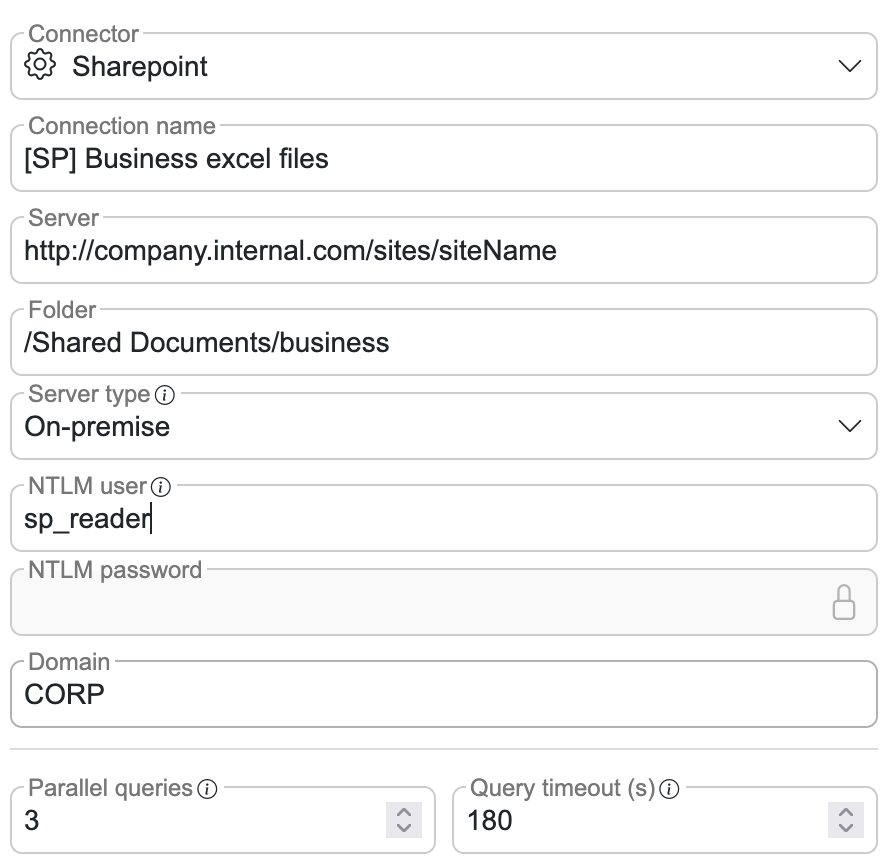
Connection name - Name for connection itself
Server - SharePoint URL with site reference
Folder - Folder reference (Starts with '/Shared documents')
Server type - On-premise
NTLM user - Domain user from previous step
NTLM password - Domain user password from previous step
Domain - User domain
Read subfolders and Folder depth - As for a cloud connection
After connection is added, certificate key pair is automatically generated
Download connection public certificate from connection view