Power BI setup
Cloud
Creating Azure AD app for Power BI access
Log into Azure portal and search for "Microsoft Entra ID"
Under "Manage -> App registrations" create a new registration
Name - choose an app name for integration with SelectZero
Supported account types - Choose "Accounts in this organizational directory only (YourCompany only - Single tenant)"
Redirect URI - can be left empty
Navigate to "Manage -> API Permissions"
Add a new permission
Choose "Power BI Service"
Choose "Delegated permissions"
Enable required permissions for reading workspace and dataset metadata
From "Configured permissions" view you also have to "Grant admin consent for YourCompany "
Navigate to "Overview"
Copy "Application (client) ID" and "Directory (tenant) ID" which we will need for SelectZero integration
Adding Power BI cloud connection
From connections page add a new Power BI connection
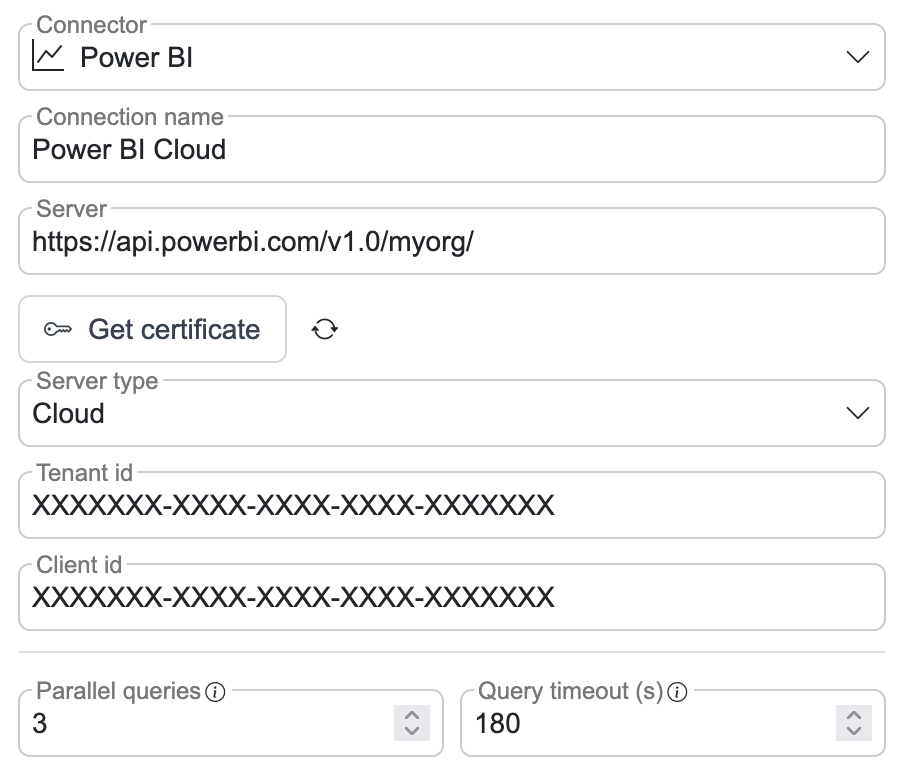
Connection name - Name for connection
Server type - Cloud
Tenant id - Directory ID from previous step
Client id - Application ID from previous step
After connection is added, certificate key pair is automatically generated
Download connection public certificate from connection view
Uploading certificate to Azure
After we have downloaded our public certificate we will navigate back to Azure portal "Microsoft Entra ID"
Under "Manage -> App registrations" find your app registration
Navigate to "Certificates & secrets"
Select "Certificates" tab
Press "Upload certificate"
Upload the public certificate from SelectZero Power BI connection
Description can be left empty
After certificate upload you can go back to your Power BI connection and press "Test" button to check connection
To use one certificate for several connections instead of uploading a new one for each, see Connection certificates.
On-premise Power BI (Report Server)
On-premise Power BI uses NTLM authentication to connect to Power BI Report Server's REST API.
Prerequisites
Power BI Report Server installed and accessible over the network
A service account with read access to reports on the Report Server
Create a service account
In Active Directory, create a new service account (or use an existing one)
On your Power BI Report Server, ensure the service account has Browser role access to the folders containing reports you wish to catalog
Adding connection
From connections page add a new Power BI connection
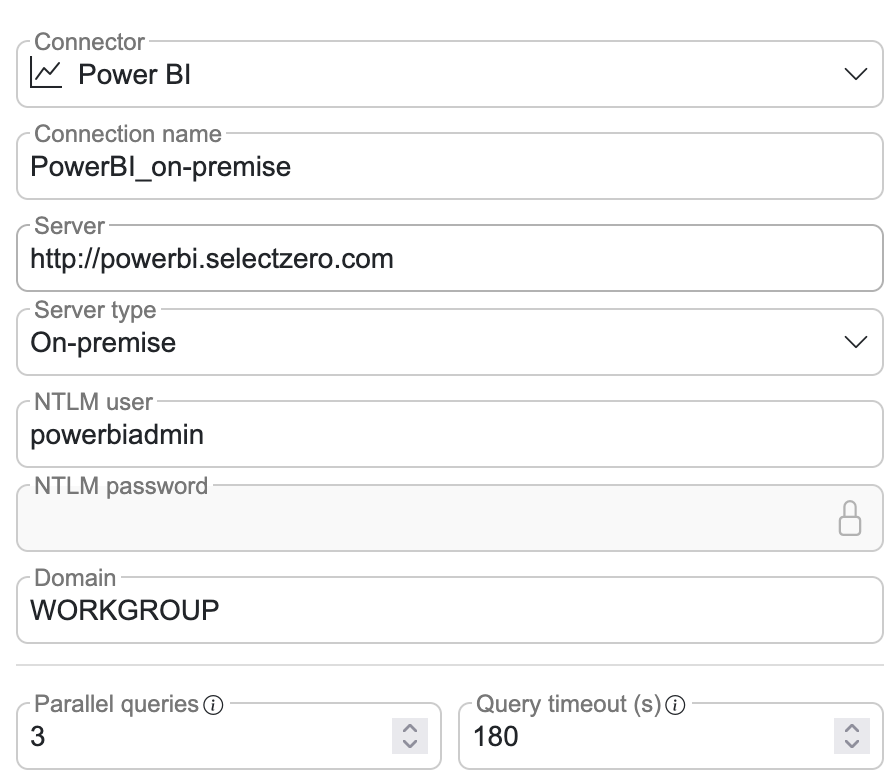
Connection name - Name for connection
Server - Power BI Report Server URL (e.g.
https://reportserver.company.com/Reports)Server type - On-premise
NTLM user - Domain user from previous step
NTLM password - Domain user password
Domain - User domain
How on-premise metadata works
SelectZero connects to Power BI Report Server's REST API to extract metadata and lineage information from your published reports:
Reports are synced as schema-level objects
Report columns are extracted from the report layout, representing the data fields used in report visuals
Lineage is automatically built by matching the data source connections defined in Power BI reports to existing SelectZero database connections. The matching is done by database server URL and database name - when a Power BI report's data source references a server and database that match an existing SelectZero connection, lineage is established automatically