Attributes
The Attributes page gives users an overview of all databases' available attributes, allowing to easily manage data assets on an attribute level.
The Attributes view can be accessed on the Catalog page under the Attributes tab.
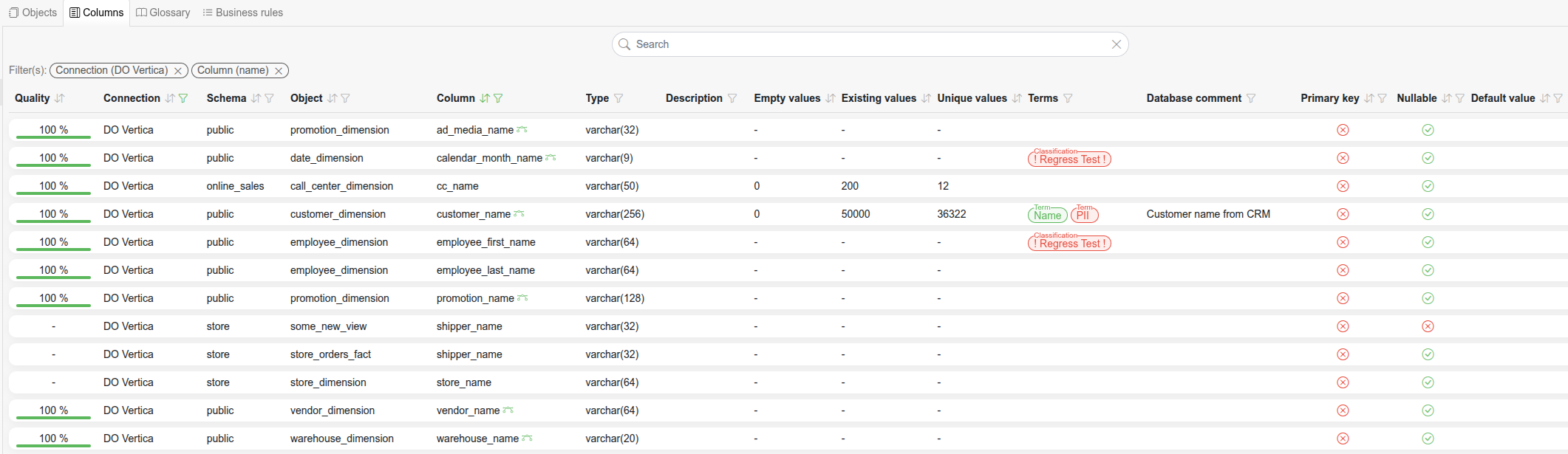
For every attribute you can see its:
Quality - calculated based on test cases and profilings
Connection - to which connection does the attribute belong to
Schema - to which schema under the connection does the attribute belong to
Object - the object's name under which the attribute belongs to
Attribute - attribute name
Type - the datatype of the attribute
Description - custom free text field to describe the attribute
Empty values - based on profilings
Existing values - based on profilings
Unique values - based on profilings
Terms - associated Terms
Database comment - technical comment from database metadata
Primary key - whether the attribute is a primary key
Nullable - whether the attribute is nullable
Default value - the default value from database metadata
Custom fields - every custom field enabled for the entity type
Attribute
The visible columns and their order can be customized from the table settings in the table header. The Attribute column is always shown. Attributes that have been added manually (rather than read from database metadata) are marked with an asterisk *, and hovering the name confirms it was added manually.
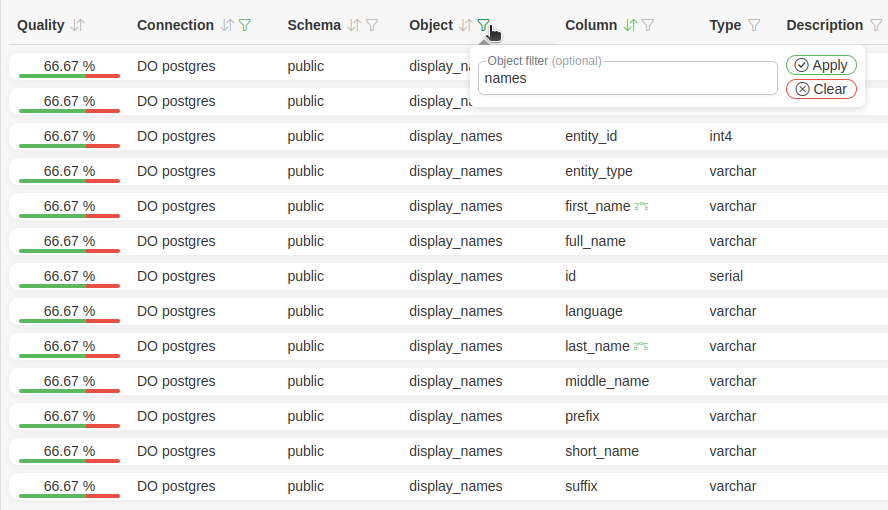
Sorting and filtering results
Some fields in this view can be sorted and/or filtered from the table headers. Terms and custom field columns can be filtered but not sorted. The Object, Attribute and Data type filters offer Exact next to the text: ticked, the value has to equal the typed text instead of containing it, so "int" no longer matches "bigint". Applied filters can be cleared in one click, restored from the filter history, or shared with other users via a copied link.
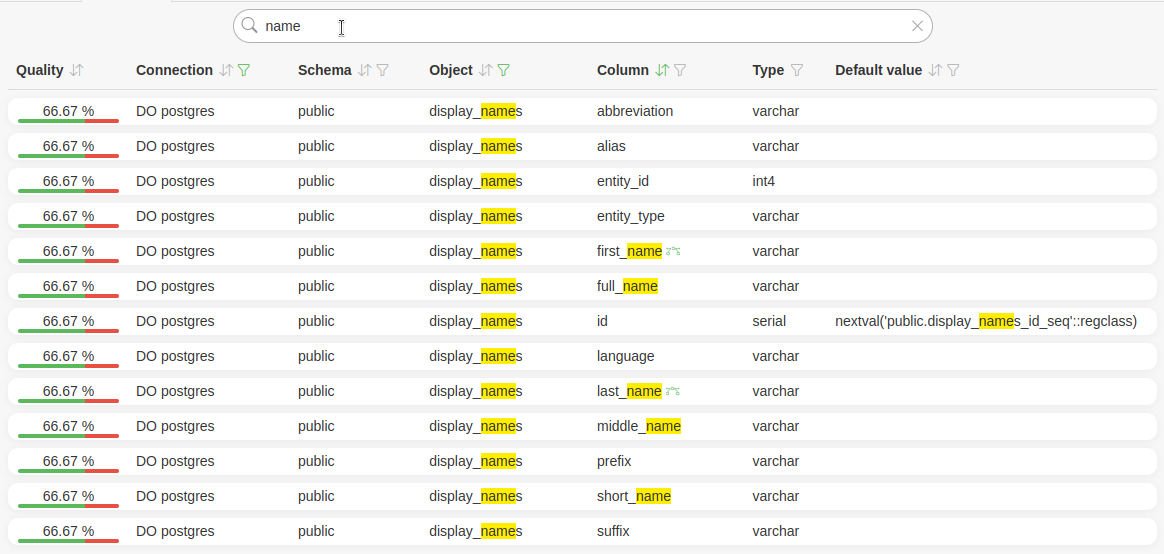
Searching for attributes
On top of the sorting and filtering, the user can apply a general search that will match results by the Object, Attribute, Description, Database comment, Default value and Custom fields.
Quick actions from a single result
From every row in the results, the user can:
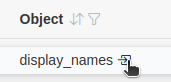
Open the object's detailed view by clicking the Object name, which is a regular link, so it can also be opened in a new tab
Open the attribute's lineage via a button after the Attribute name. The button is highlighted when the attribute is already part of a lineage definition; for attributes with no relations it only appears while the row is hovered
Bulk actions
The Edit button above the results switches the list into selection mode. The user can select individual rows (or all results matching the current filters via the header checkbox) and then:
Assign - pick a Field to apply to every selected attribute: Add terms, Remove terms or a Custom field value
Enrich - generate descriptions, related terms and custom field values for the selected attributes with AI enrichment
Attribute's detailed view
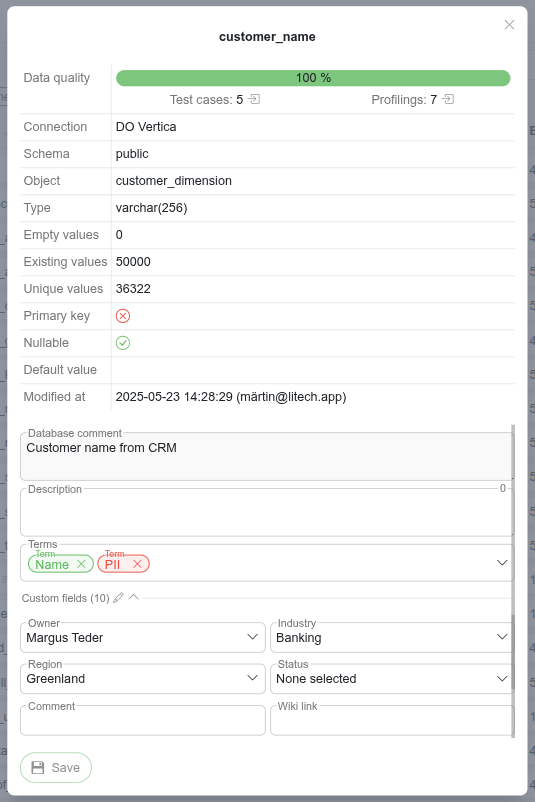
Clicking on a row in the results will open that attribute's detailed view.
The main area of the view is organized into tabs, each carrying its count:
Test cases - the test cases associated with this attribute. A New test case can be added from here via AI Assistant, Dynamic rules or Standard validations, and the Suggestions button proposes test cases for the attribute
Profilings - the profilings associated with this attribute; disabled when the attribute has none
Lineage - the lineage relations this attribute is part of (see Lineage); disabled when the attribute has no relations
The sidebar shows the attribute's metadata (type, relation count, profiling statistics, primary key, nullable, default value and the database comment) and allows the user to:
Edit the Description - custom free text field to describe the attribute
Edit the Terms - label the attribute with a term from Glossary
Edit the attribute's Custom field values.
From the view's header the user can copy a direct link to the attribute and open the audit history of the owning object (attribute changes are versioned as part of the object).
When selecting a related term, users can also filter the listed terms by type via the filter button on the right of the terms box when the options are open.
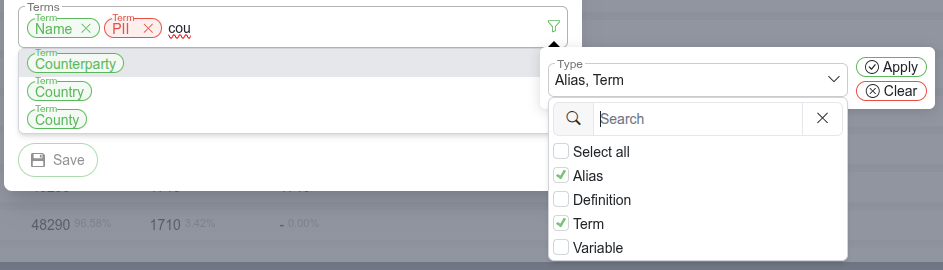
When selecting a related term, users can create a new term through the plus icon in the opened terms box.
