Automation
The Automations page, in the main menu below Profiling, is where the AI data steward works for you. You describe what the catalog should look like, the steward sweeps the scope on a schedule and proposes changes, and people accept or deny them. Unless an automation is set to Auto apply, nothing is applied without a decision: every proposal waits in the Suggestions queue, which the Suggestions button on the Automations page opens, and every accept or deny is recorded with who decided and why. The button carries the number of proposals waiting, for example Suggestions (233). Links to the page's old place in the catalog, and to the old Suggestions page, open it there.
Who may do what is set in the role's Automations tab (see Users and roles). Opening the page needs View automations: it lists the automations and opens each one read only, and it opens the queue. Creating, editing, excluding targets and sweeping them again needs Add/edit automations, and deleting an automation Delete automations. Running one needs Run automations, which stands on its own: a role can run automations it may not change, and without it Run is not offered. Setting a schedule turns runs on, so it needs both Add/edit automations and Run automations; removing one needs only Add/edit automations. An automation belongs to no one: whoever created or last edited it does not matter. Each of these privileges is checked on every connection (and every schema) the automation names, so a role whose rights cover only some of them does not see the automation at all. A scheduled run runs as the system within those connections and is not tied to anyone's privileges, so it keeps running when the people who set it up lose their rights; only switching Automations off, an invalid license, a deleted connection or a scope that names no connection stops it. Describe with AI drafts with the AI assistant, so it needs Allow AI as well as Add/edit automations. Deciding on a suggestion needs the edit privilege of what it changes. All of it needs a valid license.
Switching Enable Automations off hides the page, its menu entry and the role tab, refuses the queue and the steward's MCP tools, and stops scheduled runs. Automations, their schedules and their suggestions are kept, and pick up again once it is switched back on: a run that fell due while it was off is skipped, and each automation next runs at its next scheduled time.
Suggestions
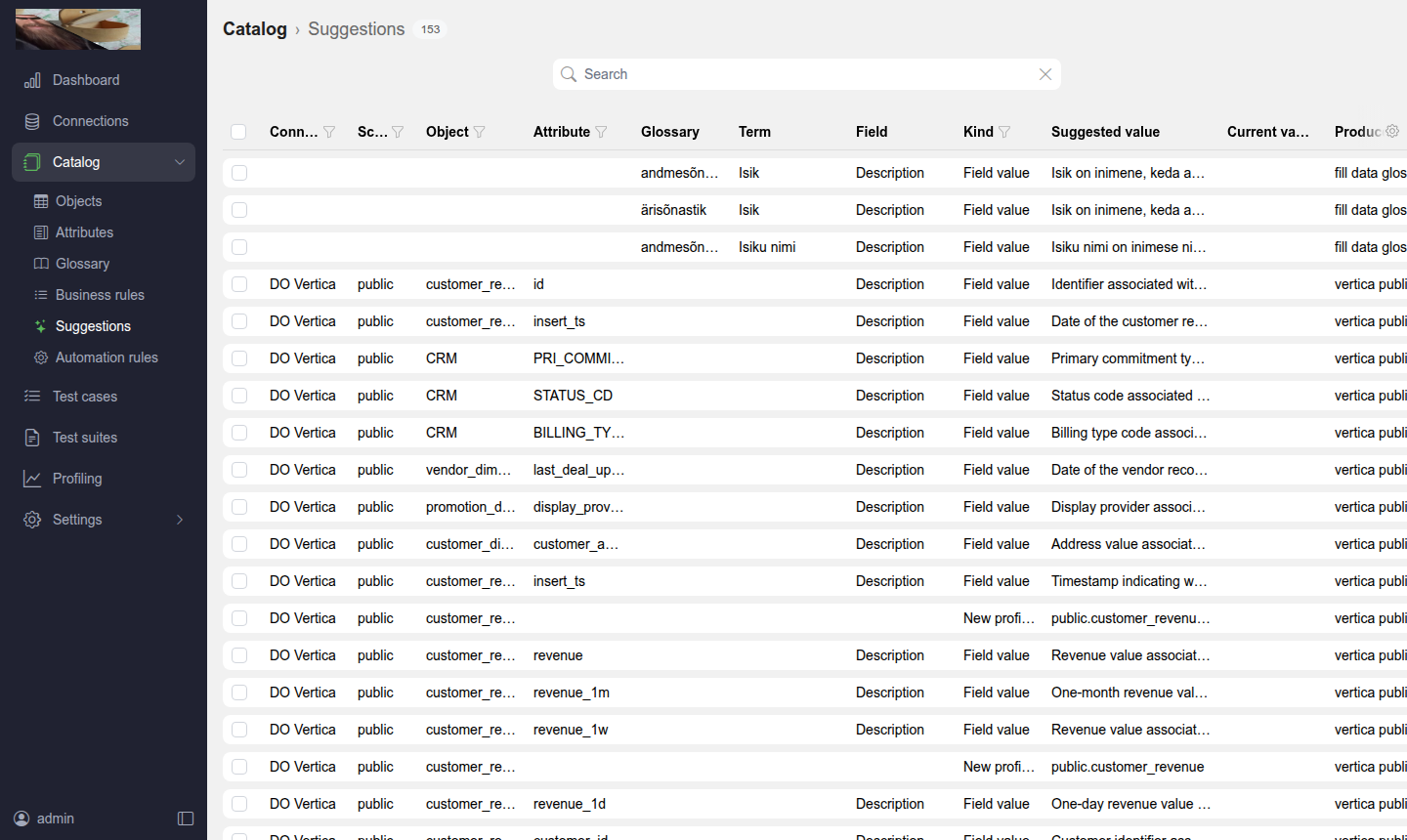
The queue lists every proposal the steward has made. It works like the other catalog lists: a search box, column filters (Status, Automation, Target type, Target, Field, Kind, Decided by) and a column picker (the cog) that also offers the decision columns Decided by, Decided at and Reasoning. The Target filter is one text matched against everything the Target cell shows: the connection, schema, object, attribute, term or test case name. Text filters have an Exact checkbox next to the text: ticked, the value has to equal the cell instead of being contained in it, so "orders" no longer matches "orders_archive". Pending rows are proposals waiting for a decision, Accepted ones have been applied and Denied ones were rejected. An automation does not propose a target again while its own proposal for it is open.
Each row names the Automation that made it (or the external agent that sent it over MCP); the column follows the automation's current name. Each row names its Target type - an attribute, an object, a glossary term or a test case - and the Target itself, with where it lives above the name: the connection, schema and object for the catalog, the glossary for a term, the connection for a test case. The Change column shows the value that is there now, struck through (or empty for a fill), next to the suggested one; a new test case or term relation only shows what it adds: the test case's name, or the term. After it come the Field the proposal touches, the Kind of proposal and when it was made.
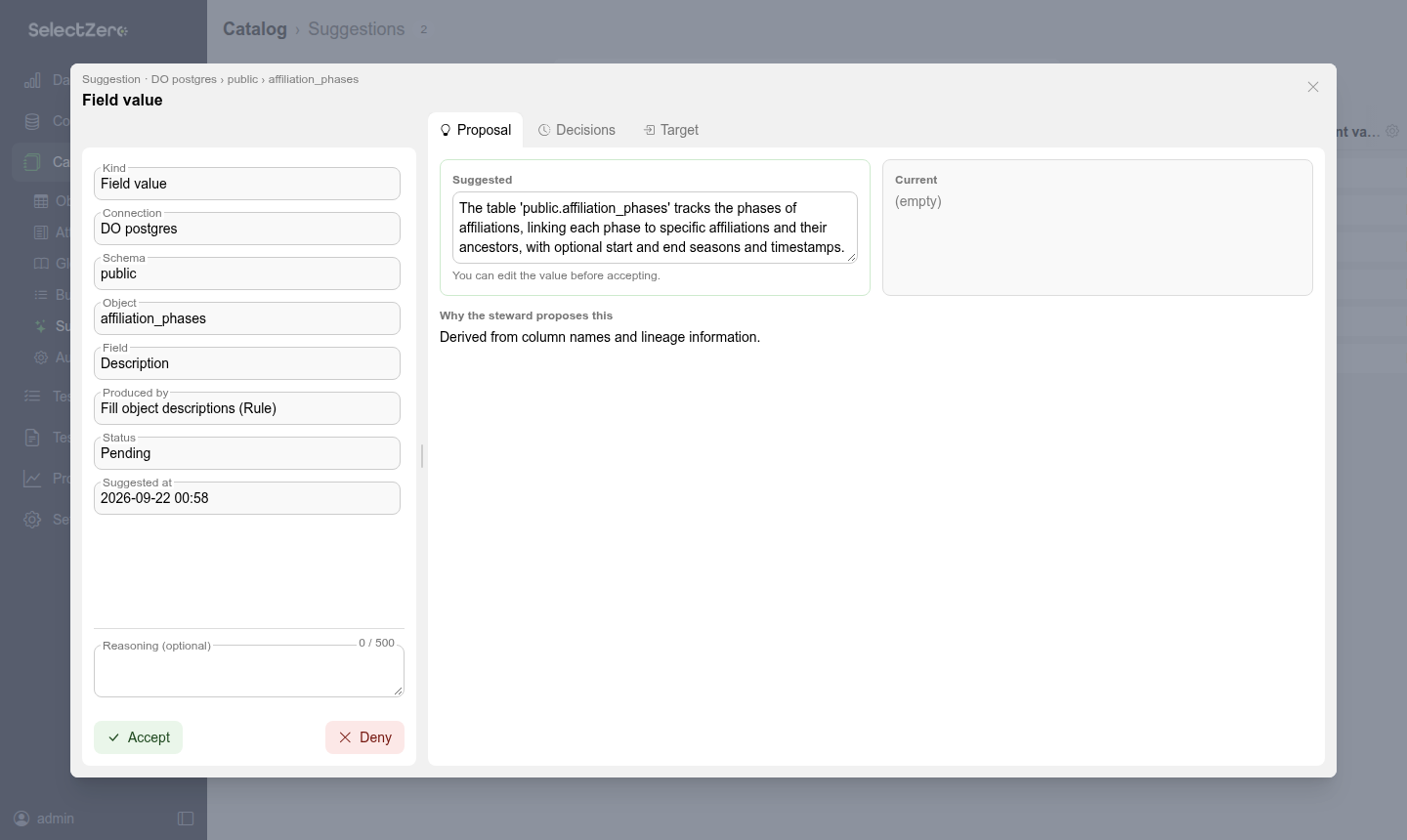
Open a row for the detail: the facts in the sidebar, among them for a rule's proposal the Step of the rule that produced it and the Run it came from, with Accept and Deny at its foot (Deny asks for an optional reason and offers Send back for a new sweep before it confirms), and one page in three labelled parts - Proposal (suggested next to current, and Why the steward proposes this), Decisions (every accept or deny so far, with who, when and the reasoning) and Target (the target as the app shows it, with a link to it). The Target link opens the attribute, object, term or test case in place, without leaving the queue. After a decision taken in the detail, the next pending row below it opens, so a queue can be worked through without returning to the list; the detail closes when there is none.
Why the steward proposes this is the model's own reasoning. A test case proposed without tool use carries none, and the tab says so rather than leaving the block out.
To decide from the list, tick the rows and press Accept or Deny above the table; both stay disabled until a pending row is ticked. Every row can be ticked, and the header checkbox selects the rows on screen; Selected: X / Y counts them, and the small × behind it clears the selection. Accept and Deny act on the pending rows of the selection, Delete on all of them. Both ask to confirm; Deny also takes an optional Reasoning, which is kept on the decision and shown to whoever looks at the proposal later. Deny can also Send back for a new sweep: the denial is kept, but the target goes back to Not swept at once, and the next run that reaches it proposes again with the denied proposal and your reasoning in its prompt - "too vague, name the currency" shapes the next description. Without it, a denied target is not proposed again until the target itself changes. Accept confirms even for a single row, because each accepted proposal is written straight away. Rows outside your edit rights cannot be decided: the selection is refused with a hint rather than failing halfway. After a decision the queue refreshes the rows in place instead of jumping back to the top. The Suggestions tab of an automation works the same way.
An automation with Auto apply on applies each of its proposals the moment it makes it. Those rows read Accepted, decided by System with the reasoning Auto-applied by the automation. A proposal that cannot be applied, for example because its target changed meanwhile, stays pending for a person to decide, with the failed attempt under its Decisions.
A proposed text value can be edited in the detail before accepting. Accept then applies your version and records the decision as Accepted with changes: the row shows an amended marker, the Decisions tab shows the original next to what was applied, and the rule learns your version as the house style for its next sweep.
An automation never proposes the same thing twice while its own proposal is pending, and a proposal it had denied is not raised again until the target itself changes. Each automation keeps its own proposals: when two automations propose the same change, each shows its own row, and a decision on one does not decide the other. Once one of them is accepted, the change is in place, so accepting the other reports that the change is already there; deny or delete it. Accepting a proposal whose target was edited in the meantime fails with a clear message instead of overwriting the newer content.
To have a proposal made again, for example after changing the automation's prompt or context, tick it and press Delete. Proposals in any status can be deleted; they leave the queue together with their decisions, and the automation proposes those targets again the next time its sweep reaches them: on the next run when one run covers the whole scope (see Max items per run), otherwise when its pass over the scope comes round to them. Deleting an accepted proposal does not undo its change: the change stays applied and keeps its own change history, and a fill step that finds the field filled has nothing to propose. Deleting needs the same edit rights as deciding. Until the automation reaches it again, the target's Automation status reads Not swept.
Kinds of proposals
Field values - a description or a custom field value for an attribute, object or test case (or for a glossary term, sent by an external agent over MCP). Custom fields can be free text, a predefined selection, a glossary term, or a person. Free-text and predefined-selection fields are filled on all three kinds of target. A glossary-term field is filled on attributes and objects from what the table around the target shows; with Allow tool use on, the steward searches the glossary itself and can fill it on test cases too. A person field is filled only with Allow tool use on. The steward derives a value from what the app knows about the target, so give a custom field a description (under Settings - Custom fields) or it is known by its name alone. Fields that record facts from outside the catalog, such as audit outcomes or sign-offs, cannot be filled by the steward: it will propose nothing for them rather than guess.
New test case - a test case for a column or table, with its SQL. Accepting it creates the test case, linked to the target. Other test cases on the target do not block it; the same SQL already in place does, so the check is never created twice.
Term relation - a glossary term for an attribute, in addition to the ones it already has.
Automations
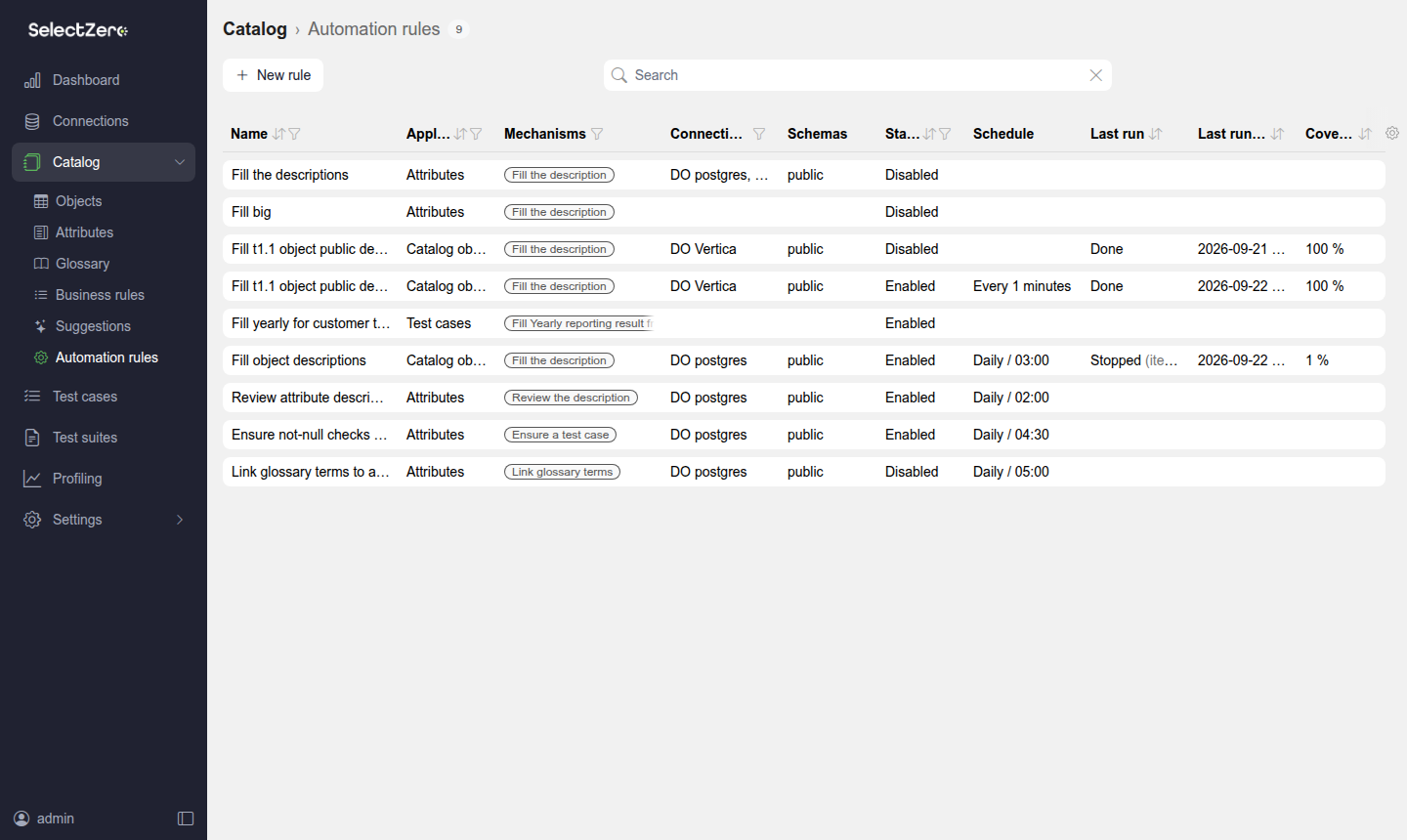
An automation is a rule that states what should be true for a scope of the catalog, and the steward keeps making it true. The list leads with a Coverage bar - green for targets that are settled, orange for those waiting for a decision, grey for those not swept yet - and then shows each automation's Mechanisms as pills, its scope, State (Scheduled, Not scheduled or Error), Schedule and Last run, with the same search, filter pills and column picker as the queue. Under Schemas a catalog rule also shows a short summary of any further narrowing it carries: a name fragment, a count of linked glossary terms, a count of custom field value filters. Press New automation and choose Empty automation to define one by hand (or Describe with AI, see below):
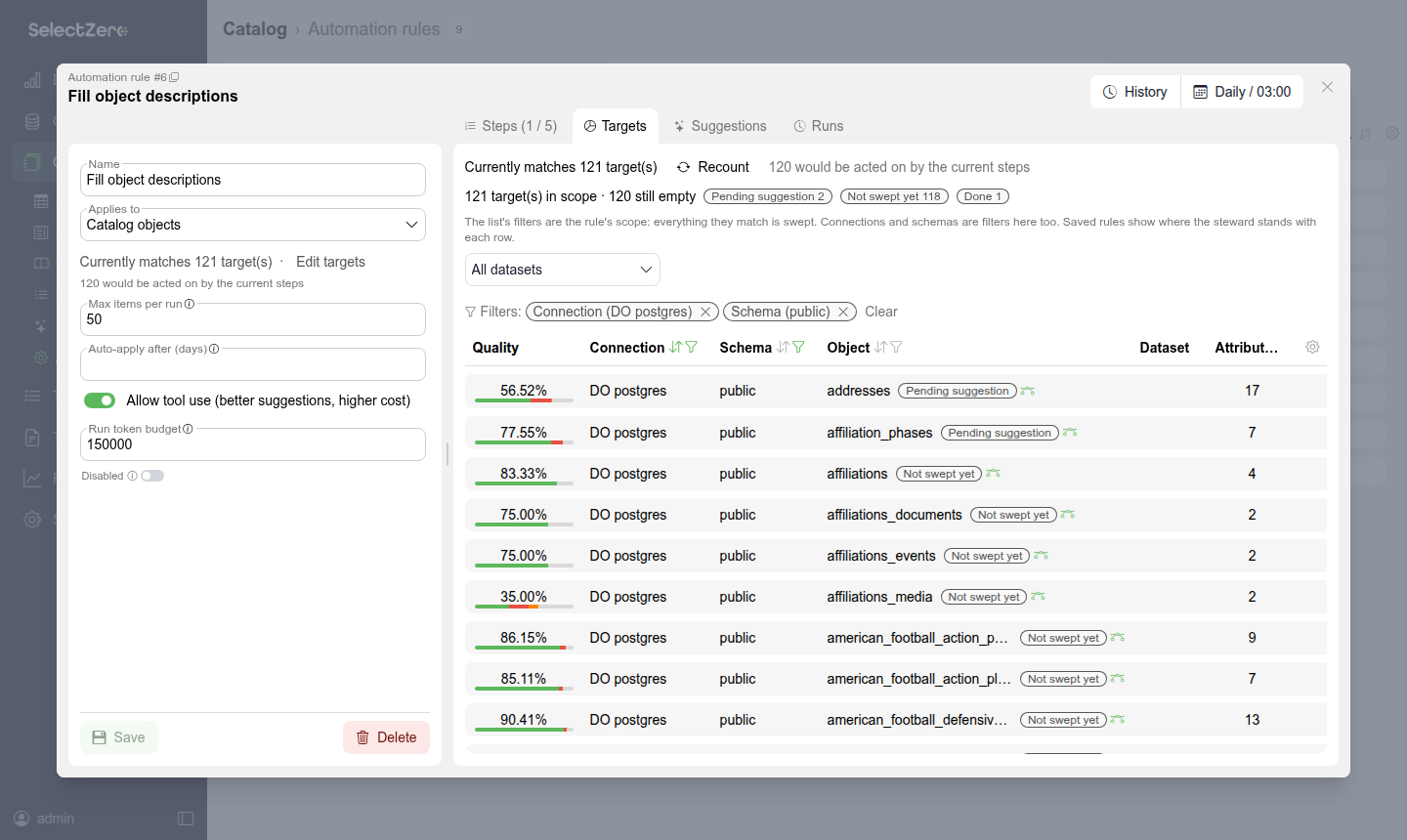
A Name and an optional Description of what the automation is for (for people; the AI does not see it), and below them, under Context, what the automation Applies to: Objects (tables and views), Attributes (columns) or Test cases (a new automation starts on Attributes). It decides which list the Targets tab shows.
The targets, on the Targets tab. The tab embeds the domain's own list - Objects, Attributes or Test cases - with the filter set that list always has. A line at the top says what the tab shows, and below it the Targets row always shows the automation's targets, read only and slightly faded. Normally the list's own filters only narrow what you see inside the targets: anyone who may see the automation can use them, they are never saved, and a pick-from-list filter only offers values inside the targets. Every column can be filtered this way, including a name the targets already set: targets named like "customer" can be narrowed further to "customer_address". Above 5000 targets, or while target changes are unsaved, a text filter the targets set cannot be narrowed further. Edit targets after the top line (editors only) turns the same list's filters into the targets, shown in the same Targets row: what the list shows while editing is what the automation will work on, and Save keeps them. Leaving with unsaved target changes (Cancel after the top line, or another tab) asks first: Discard changes goes back to the saved targets, closing the question keeps editing. A new automation starts in this mode. The tab label counts the targets, for example Targets (245). Every automation names at least one connection: add a Connection filter while editing. Connections and schemas are filters here like any other, alongside a name fragment (or, with Exact ticked, the whole name), a description that is not set, linked glossary terms, data types, test suites, statuses, labels and every custom field the list can filter on. Datasets are a column filter too: the Dataset filter of the Objects list takes a path, and matches that dataset and the ones under it. An automation saved before this filter took over from the separate dataset selector shows a note naming the one it was limited to, with Remove to drop it in favour of the filter. Narrow the filters whenever the rule is about one kind of target, for example "email columns need a format check": without narrowing, the rule asks the AI about every target in scope and the queue fills with proposals for everything else.
A scope can never mean "everything": an automation is tied to no person, so a scope without connections would reach every connection added later by anyone. Saving needs your automation rights on every connection it names, and a connection whose schemas are limited for you has to have its schemas named. A connection that no longer exists cannot be saved either: pick the connections again. Automations saved before this rule that named no connection are in Error and unscheduled until someone picks their connections.
One or more steps, each with a Mechanism:
Fill empty field - propose a value where the description or the chosen custom field is empty. For a select field, let the prompt allow every option that is a defensible answer: a rule told to propose only "PII = Yes" leaves every other column empty and re-visits it each cycle.
Review filled field - check existing content against a policy given as the Steering prompt, and propose a revision where it does not comply.
Ensure test case - propose the test case the prompt describes for targets that do not have it yet. Targets that already have test cases are swept too: the AI is shown them (description and SQL) and proposes only when none of them performs the prompted check, so a not-null check does not stand in for an email-format check. Disabled test cases do not count, since they never run. A target found covered counts as done and is looked at again after a while, or at the next sweep when the target or its test cases change (a check deleted, edited, added, disabled or enabled again).
Link glossary terms - propose glossary terms an attribute does not carry yet. Attributes that already have terms are swept too: the AI is told which terms they hold and asked for additional ones only, so a PII rule still reaches an attribute someone linked to "address". Each proposed term is its own row in the queue, at most five per attribute and sweep. Only Attributes offer it. The step's Terms switch says what it may link: All terms lets the AI propose any glossary term that fits (on a large glossary it is shown the most used and most recently changed terms), Specific terms limits it to the Terms to link you pick, for example PII, and it proposes nothing else. Specific terms needs at least one term. Describe with AI switches to Specific terms and picks the terms your description names.
A Fill empty field or Review filled field step also names the Field it works on: the description or a custom field. Ensure test case and Link glossary terms have no field, so their steps show none.
Objects offer the first three. Test cases offer the first two only: a test case has no test case to ensure and nothing to link a term to.
Allow tool use (under Advanced settings) lets the steward consult the catalog (similar columns, lineage, profiling results, cached sample values, house-style checks) before proposing, at a higher cost per item. It is offered for description and text-field steps, for filling or reviewing a select field such as a PII classification or a glossary-term field, and for test cases. The steward always starts from what the catalog already knows about the target (see below), so its tool calls go to the evidence that is not there yet. Picking a glossary term for a field, it can look up what a term labels in the catalog, with cached sample values of those columns, and the term's relations and glossary neighbours. Fields naming people require it, so every such proposal cites its evidence. A Run token budget caps one run.
Context sets what the AI is shown about each target, with the same choices as catalog enrichment and the test case AI assistant: Metadata (always: names, types, descriptions and the table's other columns), Assigned terms (the glossary terms linked to each attribute), Column values (distinct values from profiling) and Sample data (up to 20 distinct values per column from the table's sample, each cut to 100 characters: the same values catalog enrichment sends, never whole rows). A new automation starts with assigned terms and column values; automations created before the setting existed keep all four. It applies to every step, with or without tool use, and a Link glossary terms step always keeps Assigned terms, since it adds to the terms an attribute already has. Column values and sample data are real data: they are only sent while Include sample data values is enabled in the general settings.
Max items per run (under Advanced settings) bounds a single run (100 unless set, at most 1000); a larger scope is covered across runs. Each target can cost one AI call, so keep it small while a rule is new.
Auto apply applies every proposal of this automation the moment the sweep makes it, without waiting for a review. A proposal that cannot be applied stays in the queue for a person. It is off by default: every proposal waits for a decision.
A run reads a table's sample the way catalog enrichment does: a sample missing or older than 7 days is fetched again and stored. An automation belongs to no one, so it fetches with the connection's own login, and only on the connections the automation names. So Sample data in the Context can only be switched on or off by an editor with Refresh sample data on every connection and schema the automation names, and changing the targets of an automation that uses it needs that right too. For any other editor the option is greyed out and stays as it was set; they can still save their other changes. An editor whose role queries one of the named connections as a connection user cannot switch sample data on either: the run would read rows that connection user cannot see. Tables the AI looks up elsewhere use the sample already stored, however old. Each table is sampled at most once per run, whichever of its attributes and steps need it.
With Sample data history (days) set to 0 nothing is stored: a run fetches the sample live on the automation's connections and keeps it in memory for that run only. Tool use only looks at stored samples, so with history 0 it has none to offer.
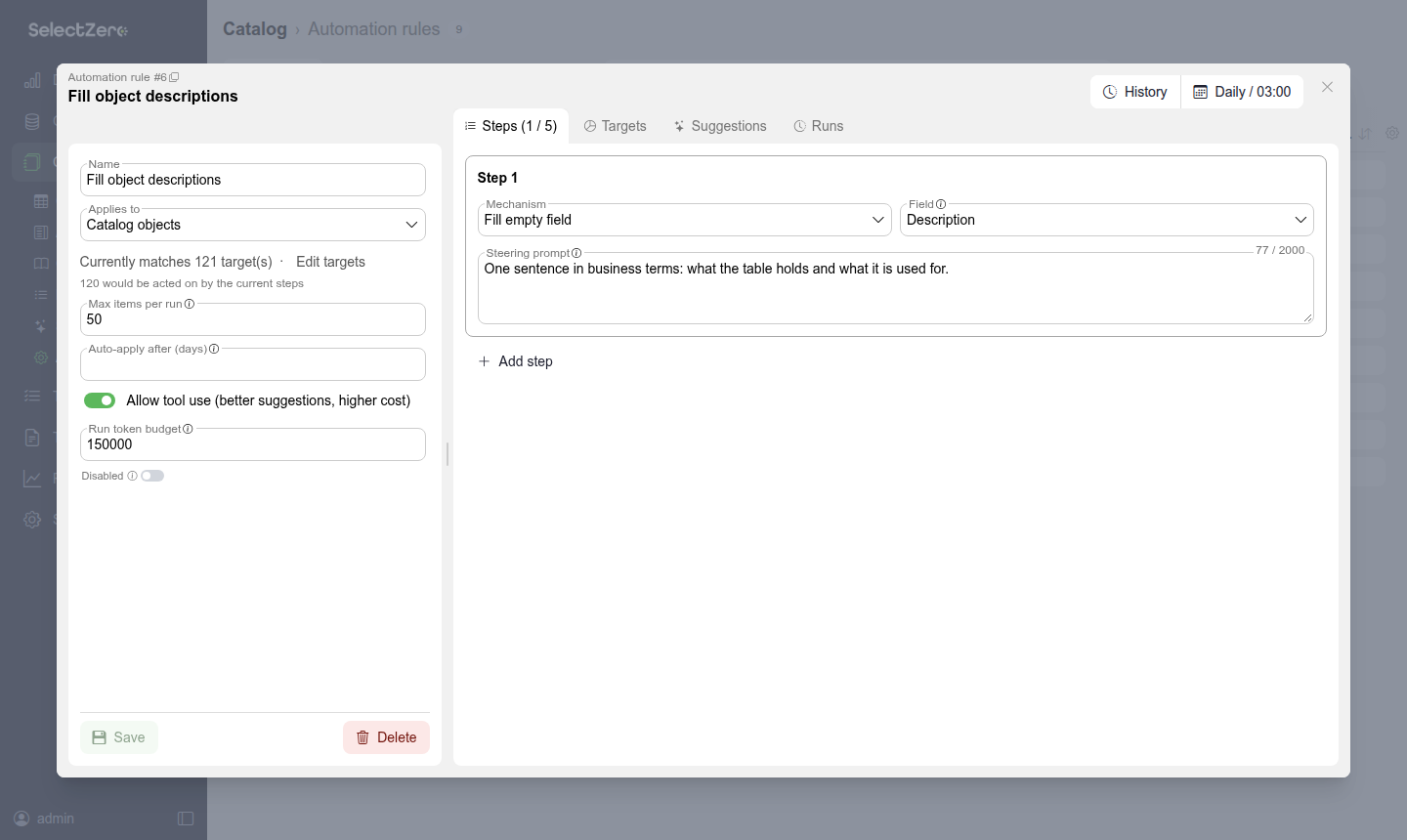
An automation opens in its own view (also reachable by link). One you may not edit (without Add/edit automations, or without it on the automation's connections) opens read only: every field is greyed out, the schedule can be looked at but not changed, and Save, Delete and History are not offered. Run is offered to anyone with Run automations on the automation's connections, read only or not, and Delete needs Delete automations. The sidebar leads with the same Coverage bar the list shows, above the definition with Save, Run and Delete; the header offers History (who changed the automation and what, with the View change history privilege) and the Schedule. The sidebar holds the Name, the Description, Context, Applies to, Auto apply and, folded away under Advanced settings (closed until you open it, and remembered), Allow tool use with its Run token budget, and Max items per run.
The tabs, in this order. An automation opens on Targets, or on Suggestions when some of its suggestions are waiting for a decision.
Targets - the targets and the filters as described above. For a saved automation the first column, Automation status, shows where the steward stands with each row: Pending, Done, No evidence, Not swept or Excluded; its funnel filters the rows by it. The tab label carries the scope's match count, for example Targets (245): the same count the domain's own list puts beside its title. For a saved rule, the first column, Automation status, shows where the steward stands with each row: Pending, Done, No evidence, Not swept or Excluded. Filter the list by it with the column's funnel; the filter shows as a pill among the list's other filters. The status filter only narrows what you look at; it is not part of the automation's targets, the tab label keeps counting every target, and it is set aside while the targets are being edited. On a scope of more than 5,000 targets it covers the first 5,000, and the rest read Not counted. Done covers a decided suggestion, accepted or denied, and a target that already is what the step would produce: a filled field on a rule with one fill step, a target an Ensure test case step found already covered, or a target the last full pass over the scope went through with nothing to propose and that has not changed since. No evidence means the AI looked at the target and found nothing to propose. That answer stands: the automation does not ask again on a schedule, so a run never pays for the same empty answer twice. It asks again once the target itself changes, or the automation's prompt, steps or context are edited. Not swept also covers a target whose suggestion was deleted or sent back for a new sweep, a target that changed since its last empty answer, and a look that never finished (the AI ran out of tool steps), until the automation reaches it. While the targets have unsaved changes a note says so: the statuses and the Actions menu belong to the saved targets until you save, and after Save they and the coverage follow at once.
Editors can tick targets in the Automation status column (the header box ticks every target the tab lists, on every page, less the states the column's funnel hides; Shift+click ticks a range). Selected: X / Y above the list counts them, and the Actions menu next to it acts on them: Exclude takes them out of the automation - they read Excluded, are never asked, and are left out of the coverage, while their existing suggestions stay - and Include puts them back. Sweep again sets them to Not swept so the next runs ask them afresh: the automation's pending suggestions for them are deleted, accepted and denied ones are kept, and excluded targets are included again.
Steps - the mechanisms above, up to five.
Suggestions - the queue, scoped to this automation, with checkboxes to accept, deny or delete several at once. The tab label counts the suggestions waiting for a decision, for example Suggestions (176 pending), and reads just Suggestions when nothing is waiting; the Suggestions button on the Automations page counts the same way across every automation. Columns that would repeat the same value on every row are left out: Target type and Automation always, Field and Kind when the automation has a single step.
Runs - the run history below, including the tokens each run spent.
An automation runs on its Schedule (the same scheduler as test suites and profiling, see Scheduling). The schedule is its on/off switch: without one it only runs when started with Run, and removing the schedule stops it while its history and pending suggestions stay. Deleting the automation itself removes its schedule, its run history and every suggestion it made, pending, accepted or denied, together with their decisions. Changes that were accepted stay applied and keep their own entry in the change history. Suggestions made by other automations are not affected. Deleting a connection removes the schedule of every automation whose targets name that connection, and marks it with an error until its targets are fixed. The list shows each rule's Last run and its Coverage, in the colours of the targets' Automation status: green for Done and No evidence (settled: a decision was taken, or the AI looked and found nothing, such as a column a PII rule found no personal data in), orange for Pending and grey for Not swept. Excluded targets are no part of it. There is no red: nothing an automation does marks a target as failed. The percentage counts green only: a rule that found personal data in 5 of 20 columns and nothing in the other 15 is 75 % covered while the 5 suggestions wait for a decision, and 100 % once they are accepted or denied. Every automation shows it, from the moment it is created (0 % until its first run), and it moves as soon as a suggestion is accepted, denied or deleted, or the automation's targets, steps or context are changed. A sweep that is running now also appears in the Executions tile of the Dashboard as Automation run, for anyone who may see the automation.
A running automation can be cancelled: Cancel run in the automation's sidebar (where Run was), on its row in the list, and in the dashboard's Executions tile; each asks to confirm first. Whoever may run the automation may cancel it, and the dashboard tile still offers it after Automations has been switched off. The run stops once the target in hand is done (a call to the AI already under way is not cut), keeps every suggestion it made, and is recorded as Cancelled; the next run carries on where it stopped. While the request waits for that, the run reads Cancelling after the current item.
Run, beside Save in the automation's sidebar, sweeps it once immediately, without waiting for the schedule. On a scope of more than 1,000 targets it asks first, since one click could start on a large part of the catalog. Once the run is accepted a progress line (Running: 12 of 100) appears above the buttons, Run turns into Cancel run, and the list's State reads Running. It works on an automation without a schedule, which is the point: try a freshly built automation, read what it proposes in the queue, and only then give it a schedule. A manual run is an ordinary run in every other respect
it obeys Max items per run and the Run token budget, appears in Runs and in the dashboard's Executions tile (named after the person who started it), and its proposals still wait for a human decision unless Auto apply is on. One sweep per automation at a time: while one is running the button is disabled, and a scheduled run that falls due meanwhile simply waits for the next check. A rule that carries an error cannot be run until the error is fixed, and a rule with unsaved edits has to be saved first - the run sweeps what is stored, not what is on screen.
Test cases
A test case rule fills or reviews the Description of a test case and its custom fields, over the Test cases list's own filters: connection, test suite, status, severity, business rule, labels, tags and custom fields. It offers Fill empty field and Review filled field only. Accepting needs the Add/edit test cases privilege; the test case is updated through its normal versioning, so History on the test case shows the steward's edit. In the queue, test case proposals show the Test case column, and opening the target opens the test case.
Run history
Each run records when it Started, its Status, how many targets it Processed, how many proposals it Suggested, how many Failed and the Tokens it spent. The No suggestion column counts the targets that yielded nothing and names the reasons: already done, not applicable, awaiting a decision, no evidence, no profiling, person not found, needs the tool loop, ran out of tool steps, nothing found earlier (an empty answer that still stands, so the target was not asked) or excluded.
A target the steward found no evidence for is not asked again on a schedule: the answer stands until the target changes or the automation's steps, scope or context are edited, so a scope without signal does not keep costing tokens. A target it kept exploring without concluding stays Not swept. It is not asked again on every run, which would spend a whole exploration on it each time: a full pass over the scope asks it again, an automation that only reviews asks it again once it changes, and Sweep again asks it on the next run. Ran out of tool steps is a last resort. When the steward has used up its exploration budget it still gets one final turn that can do nothing but conclude, so a target lands here only when it declined even then, and the system log names the tools it did call.
A run someone cancelled reads Cancelled and keeps what it made. A run that stops early says why, beside its status: item cap reached (the rule's Max items per run; a normal capped run that continues on the next schedule), token budget reached, some items failed, consecutive failures or server shutdown. When items failed, the Failed cell carries the last failure message, so the cause is visible without the system log; the rules list shows the same message beside the rule's last run.
Describe what to automate
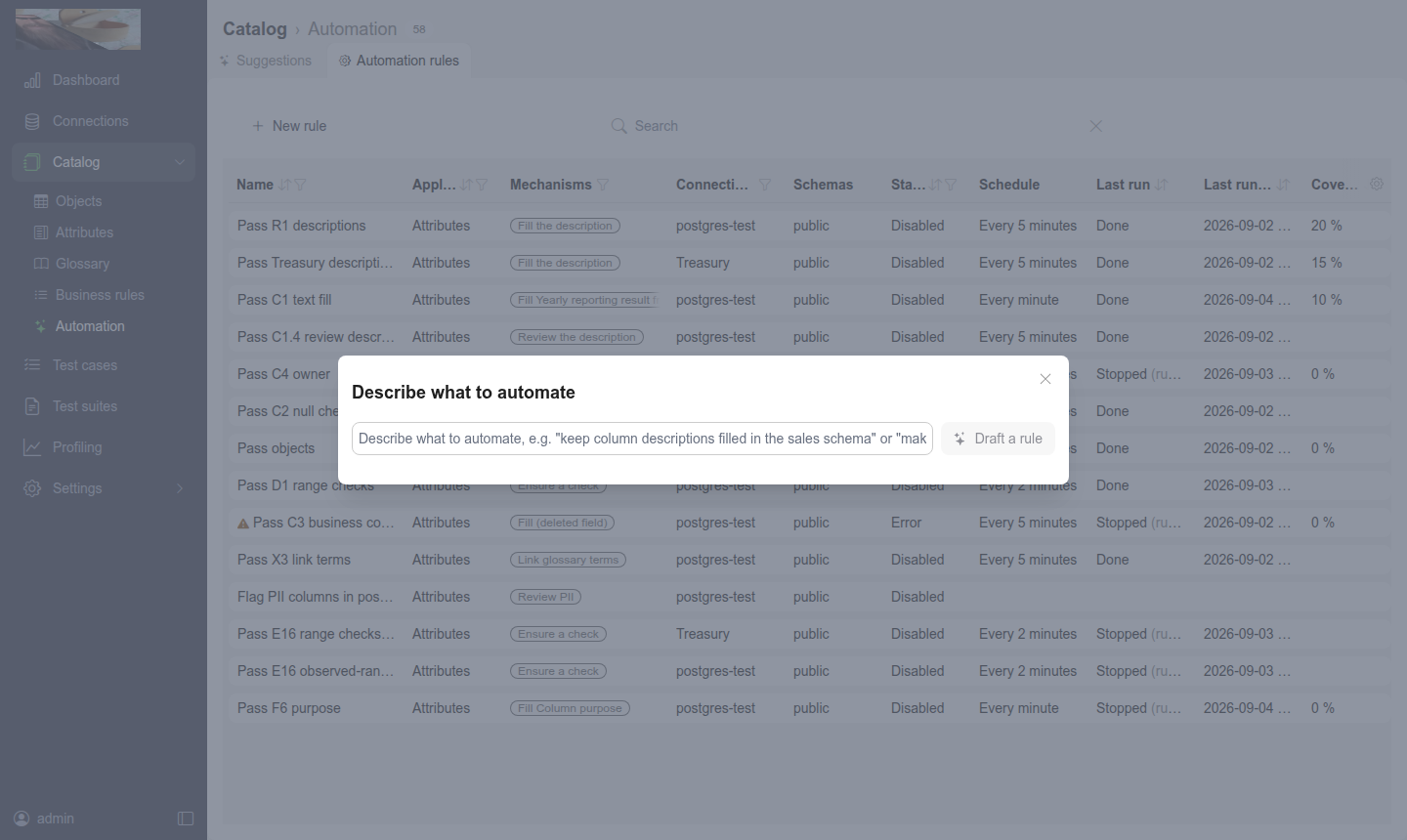
Instead of building an automation by hand, choose New automation - Describe with AI and describe it: "keep column descriptions filled in the sales schema", "make sure every PII column is classified". Press Draft automation. The steward looks at your connections and custom fields, sizes the scope, and hands back a draft. Describe a kind of target rather than a place, for example "email columns" or "columns linked to the Customer term", and the draft narrows the scope that way instead of sweeping everything. Open in editor opens it pre-filled, its Description included, and unsaved: review it, save it, and give it a schedule when it should run on its own. Discard drops the draft, and Draft again asks once more with the text in the box.
When the draft needs a custom field the instance does not have, such as a PII field, it leaves that step out and its summary names the field to create, with the options it should have. Create it under Settings - Custom fields, then describe the automation again.
Drafting can take a minute or two. A status box shows the step it is on, and Cancel at its foot stops it after the current step. The typed text stays in place if the draft fails.
Over MCP
External agents can work with the steward through the MCP server: submit field suggestions (on a catalog target or on a glossary term) and test case suggestions into the same queue, read the decisions people made and why, list, create and update automations (always created without a schedule; scheduling is a separate update with a cron expression), run one once off its schedule (the same "try it before scheduling it" step as Run in the app, refused while that automation is already sweeping), and size a scope before creating anything. The rule tools cover Objects, Attributes and Test cases, the same targets as the app. The MCP tools never switch Auto apply on: an update over MCP replaces the whole definition and leaves it off, so it is a setting a person makes in the app.
A scope is named the way the editor's filters are: connection names, schema names, and the same narrowing - nameContains for a fragment of the column or object name, termNames for attributes linked to given glossary terms, and customFieldValueFilters as Field name=Option value entries. Every rule names at least one connection; naming none is refused. Size the scope with the scope-count tool before creating the rule.
The AI data steward tool group can be switched off under Settings - General - Modules like the other groups. Accepting and denying stays in the app.
Data retention
Decision events are governance history. Their retention is set under Settings - General - Data retention: AI suggestion decision retention (days) (default 365) and (count) (default 100000). Pruning decision events never re-opens denied proposals.