Users & Roles
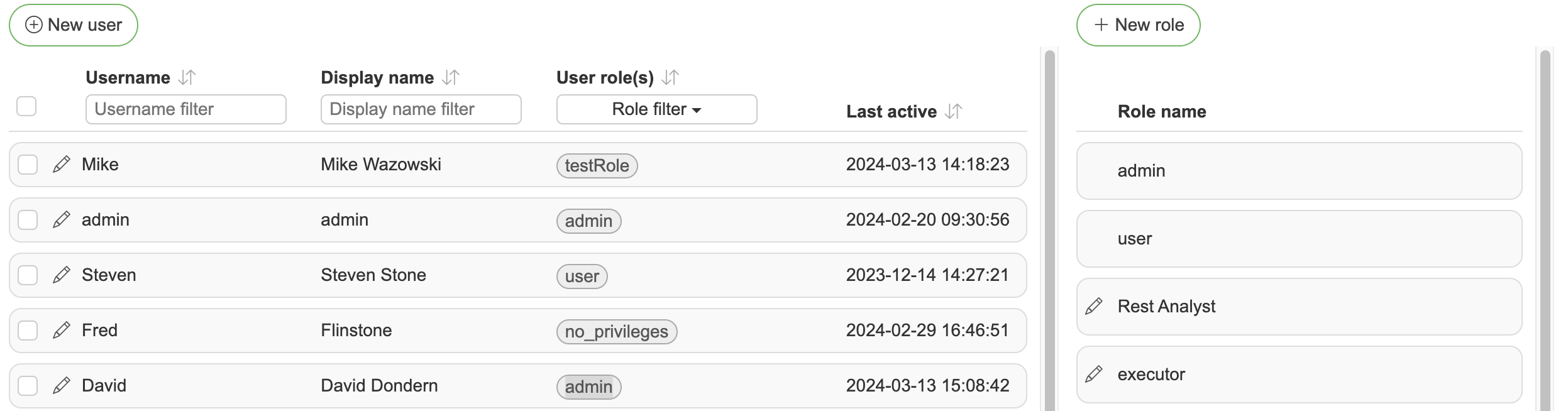
The users list shows each user's activity indicator (green when a session is active), display name, roles and last activity, and can be filtered from the column headers. Clicking a row opens the user for editing; clicking a role in the roles panel opens the role.
DQM has two predefined roles:
admin - Allows all privileges & actions inside DQM and has access to all data sources. Admin users can modify all DQM settings
user - Allows all privileges inside DQM and has access to all data sources
Adding a custom role
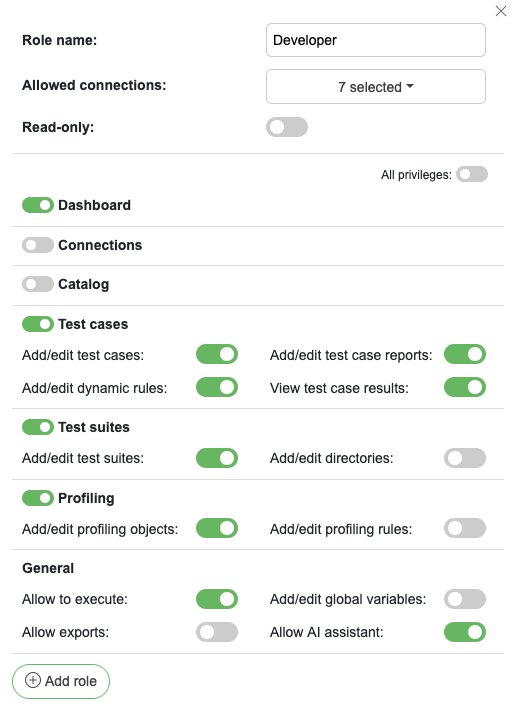
Role name - Identifier role name
Allowed connections - Allowed data sources for given role
External directory group - Optional AD/LDAP group or OAuth groups-claim value (full DN or plain name) that maps to this role for automatic role syncing. The built-in admin and user roles can also be mapped: clicking them in the role list opens an editor with just this field, since their privileges are fixed
Read-only / Editor / Full access / Custom - Quick start for the privileges: Read-only makes the role read-only (assigned to license read-only users): it keeps the selected pages and removes every other privilege except View test case results, Editor gives everything except deleting, Full access gives everything. Custom is selected as soon as you change a privilege yourself; choosing it on a read-only role makes the role a normal one
Privileges - Access to specific functionalities of DQM, one box per page plus General. The slider in a box's header grants access to the page; opening the box shows the Add/edit, Delete and Allowed sliders for that page. General is not a page, so it has no header slider; its privileges are switched inside the box
The same dialog opens when clicking an existing role, with Save and Delete buttons.
Adding a read-only role
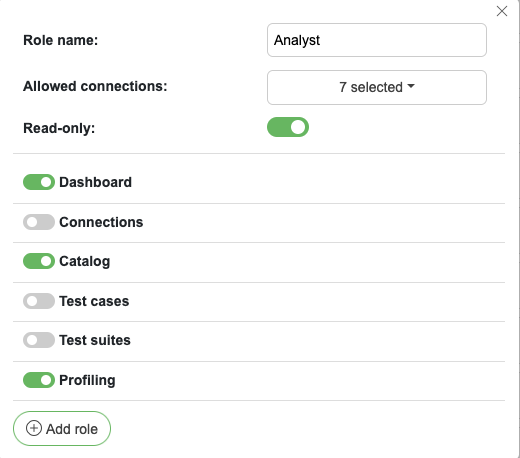
For read-only users you can choose specific pages they have access to (plus View test case results under Test cases). Choosing Read-only leaves only the page sliders; only Test cases can still be opened.
Adding a new user
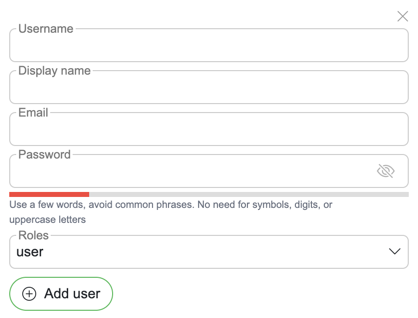
Username - Username identifier
Display name - Display name which will be displayed throughout DQM
Email - User email address used for alerts
User type - Internal users sign in with a password managed in DQM. External users sign in through OAuth, LDAP or Active Directory; they have no password at all, and their roles can be managed from the directory (see automatic role syncing). The type is shown next to every user in the list and cannot be changed after the user is created.
Password - Internal users only (Password must be between 12 - 72 characters and strong enough; the form shows a live strength meter, and a few uncommon words work better than symbol substitutions). The field is hidden for external users, and a password can never be added to one later.
Roles - One or more roles determining what the user can do in DQM based on the privileges and allowed connections assigned to them.
Bulk user actions
Selecting users with the row checkboxes replaces the toolbar with bulk actions: Assign (add or remove roles on all selected users at once, every user must keep at least one role), Delete users, and Terminate sessions, which logs the selected users out immediately.
Recovering admin user
If in some case admin user credentials are forgotten, admin user password can be reset from the application machine. DQM container/JAR file should be rerun with parameter “dqm.recovery.password”
Temporary users
Temporary users are auto-generated read-only users created when visitors access DQM via the "Continue as a temporary user" button on the login page or the shareable link /login/anonymous.
Temporary user access can be enabled from General settings.
How it works
A visitor opens the login page and clicks "Continue as a temporary user", or navigates directly to
/login/anonymousA new user with a randomly generated name and the configured reader role is created automatically
The visitor is logged in and redirected to the dashboard
What temporary users can do
Temporary users are assigned a reader role — they can only view data, not modify it
They are automatically cleaned up when their session expires or when they log out
Managing temporary users
In the admin user management view, temporary users can be viewed and deleted but not edited
The maximum number of concurrent temporary users is configurable to prevent abuse
The link
/login/anonymouscan be shared directly with external visitors — anyone with the link can access DQM without needing credentials
Privileges
The privileges below correspond to the sliders in the role-edit dialog. Each section starts with a top-level "view" privilege, the slider in the box header, that grants access to the page; switching on any privilege in the box also switches on the page, and switching the page off clears the whole box.
Deleting is a separate privilege from adding and editing. Switching on a Delete privilege also switches on its add/edit privilege, and switching add/edit off also switches delete off. Roles that held an add/edit privilege before the delete privileges were introduced were given the matching delete privilege, so they can still delete what they could before.
Dashboard
View dashboard - Grants access to the dashboard page
Add/edit dashboard - Allows creating and editing dashboards, their tiles and layout
Delete dashboards - Allows deleting dashboards
Connections
View connections page - Grants access to the connections page
Add/edit connections - Allows creating and editing data source connections
Delete connections - Allows deleting connections, their schemas, connection users and files, and excluding objects
Catalog
View catalog page - Grants access to the data catalog page
Add/edit catalog objects - Allows creating and editing catalog objects
Delete catalog objects - Allows deleting catalog objects and their columns
Add/edit glossary terms - Allows managing business glossary terms
Delete glossary terms - Allows deleting glossary terms
Add/edit business rules - Allows managing business rules
Delete business rules - Allows deleting business rules
Allow catalog imports - Allows running catalog imports from external sources
Directories - Allows managing the catalog, glossary and business rule directory trees
Delete directories - Allows deleting catalog, glossary and business rule directories
View sample data - Allows viewing the Data tab with a sample of the object's actual rows; when Sample data history (days) is 0, nothing is stored and only users with Refresh sample data can load rows into the tab
Refresh sample data - Allows fetching fresh sample data, including offering it as AI context. An automation fetches fresh samples only where its owner holds it
Test cases
View test cases page - Grants access to the test cases page
Add/edit test cases - Allows creating and editing test cases, including importing them from a file
Delete test cases - Allows deleting test cases
Add/edit test case reports - Allows managing test case reports
Delete test case reports - Allows deleting test case reports
Add/edit dynamic rules - Allows managing dynamic rules used to auto-generate test cases
Delete dynamic rules - Allows deleting dynamic rules and their parameters
View test case results - Allows viewing test case run results and history
Test suites
View test suites page - Grants access to the test suites page
Add/edit test suites - Allows creating and editing test suites
Delete test suites - Allows deleting test suites. Deleting a suite together with its test cases also needs Delete test cases
Add/edit directories - Allows managing the test suite directory tree
Delete directories - Allows deleting test suite directories
View test suite reports - Allows viewing test suite reports
Add/edit suite reports - Allows creating and editing test suite reports
Delete suite reports - Allows deleting generated test suite reports
Profiling
View profiling page - Grants access to the profiling page
Add/edit profiling objects - Allows managing objects to profile
Delete profiling objects - Allows deleting profiling objects
Add/edit profiling rules - Allows managing profiling rules
Delete profiling rules - Allows deleting profiling rules and data types
Automations
The tab is shown only while Enable Automations is on in the AI assistant settings; a role keeps its choices while it is hidden.
View automations - Grants access to the Automations page: the automations read only, and the queue of the steward's suggestions. Like an editor, a reader sees only the automations whose every connection (and schema) their role covers.
Add/edit automations - Allows creating and editing automations, removing their schedules, and excluding their targets or sweeping them again. Setting a schedule also needs Run automations, and Describe with AI also needs Allow AI.
Delete automations - Allows deleting automations, with their schedule, run history and suggestions
Run automations - Allows running automations on demand. It does not need Add/edit automations, so a role can run automations it may not change. Setting a schedule needs it together with Add/edit automations. Whoever may run an automation may also cancel a run of it. A scheduled run is not tied to anyone's privileges: it runs within the connections the automation names.
Deciding on the steward's suggestions needs the edit privilege of what the suggestion changes (catalog, test cases or glossary terms), not one of these.
General
Allow to execute - Allows running test cases, test suites and profilings
Add/edit global variables - Allows managing global variables
Delete global variables - Allows deleting global variables
Allow exports - Allows exporting data and configurations from DQM
Allow AI - Use AI on the role's connections: the AI assistant (test case generation and catalog description enrichment, when the assistant is enabled in global settings), Ask data and drafting automations with Describe with AI.
Add/edit custom fields - Allows managing custom fields on catalog objects and other entities.
Delete custom fields - Allows deleting custom fields
View change history - Allows viewing audit history / change diffs on entities.
Generate PATs - Allows the user to create and manage their own personal access tokens for the MCP server. The privilege is only shown in the role dialog while MCP is enabled on the instance. Without this privilege the user does not see the PATs tab in their profile.
Example users & roles
The examples below show how roles can be designed for different personas, and how a user inherits the union of privileges from all roles assigned to them.
The first column lists the main privileges (grouped by section, matching the role-edit dialog); a checkmark (✓) marks privileges the role grants.
R1 - data steward
R2 - data analyst
R3 - data engineer
R4 - product owner
C1 - Connection 1
C2 - Connection 2
C3 - Connection 3
Privilege / role | R1 | R2 | R3 | R4 |
|---|---|---|---|---|
Allowed connections | C1 | C1, C2 | C1, C2, C3 | C3 |
Dashboard | ✓ | ✓ | ||
Connections | ||||
Add/edit connections | ||||
Catalog | ✓ | ✓ | ✓ | |
Add/edit catalog objects | ✓ | ✓ | ||
Add/edit glossary terms | ✓ | ✓ | ||
Add/edit business rules | ✓ | ✓ | ||
Allow catalog imports | ✓ | ✓ | ||
Directories | ✓ | ✓ | ||
Test cases | ✓ | ✓ | ||
Add/edit test cases | ✓ | ✓ | ||
Add/edit test case reports | ✓ | ✓ | ||
Add/edit dynamic rules | ✓ | ✓ | ||
View test case results | ✓ | |||
Test suites | ✓ | ✓ | ||
Add/edit test suites | ✓ | ✓ | ||
Add/edit directories | ✓ | ✓ | ||
Profiling | ✓ | ✓ | ||
Add/edit profiling objects | ✓ | |||
Add/edit profiling rules | ✓ | |||
Allow to execute | ✓ | ✓ | ||
Add/edit global variables | ✓ | ✓ | ||
Allow exports | ✓ | ✓ | ||
Allow AI | ✓ | ✓ | ||
Generate PATs | ✓ |
When a user is assigned multiple roles, both their allowed connections and their privileges are unioned across those roles.
User | Roles | Explanation |
|---|---|---|
U1 | R4 | Can only access dashboard and catalog for one specific connection. Basically a reader role for a specific data source. |
U2 | R1, R2 | Can access databases C1, C2 and all functionality, other than editing connections and editing profilings. |
U3 | R2, R4 | Exactly same privileges as just R2 + access to C3 database with these privileges. |
U4 | R1, R2, R3, R4 | Can do everything but access connection editing. |
U5 | R1, R4 | Can execute test cases against C1+C3 database (access privileges are stacked). |