General settings
System overview
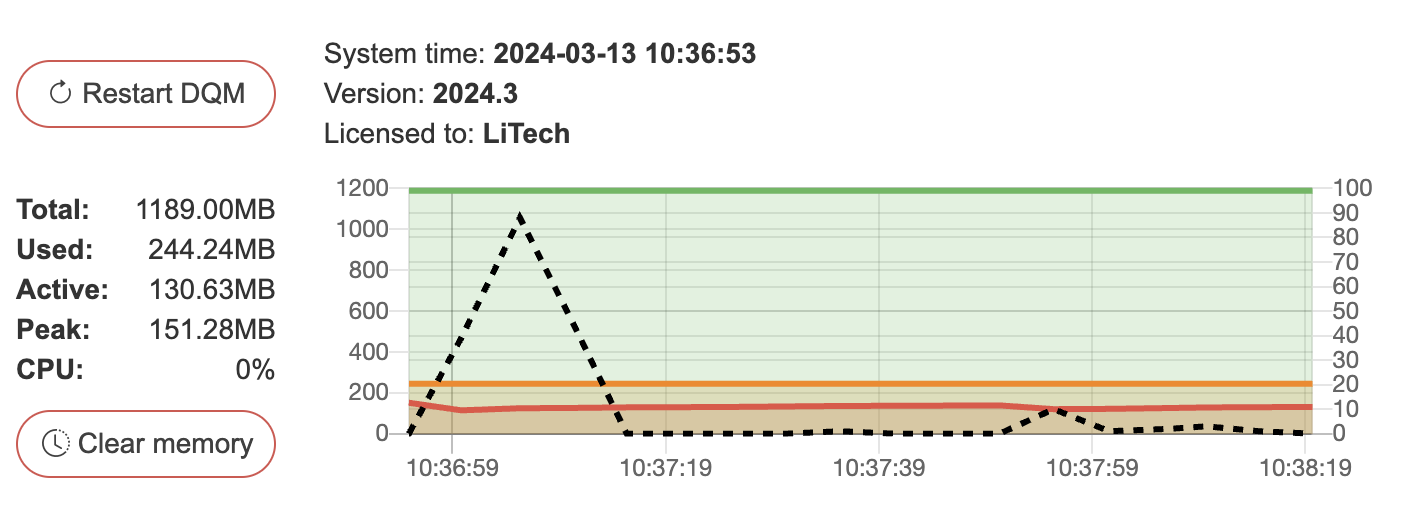
The card at the top of the General tab shows the System time, Version and current license, and offers:
Restart - manual soft restart for the platform (all users are logged out; a confirmation is shown)
Update license – update your on-premise SelectZero license via the pencil icon
The resource usage graph next to it plots (the stat pills above the chart are the legend):
Total (green) – total usable memory
Used (orange) – memory currently occupied
Active (red) – memory actively in use
Peak (grey) – peak memory, shown as a stat only
CPU (black, dashed) – CPU usage on the right-hand 0-100% axis
License
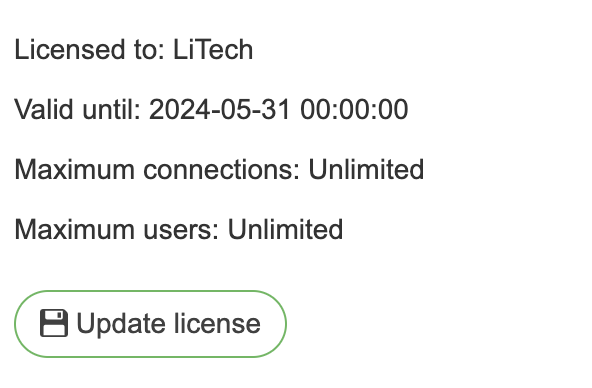
The License modal opens from the pencil icon next to the Licensed to row of the system overview card and displays the details of the currently installed license:
Licensed to – company name that owns the license
Valid until – license expiry date
Max connections – amount of connections allowed with current license
Max users – amount of users that can be created with current license
Max readers – amount of readers that can be created with current license
License key – editable text area used to install a new license key
Updating the license
To replace the current license with a new one:
Open Settings → General (requires ADMIN privileges).
In the card at the top, click the pencil next to Licensed to to open the license modal
Paste the new license key into the License key text area, replacing any existing content.
Click the Update button (floppy-disk icon) below the field to apply the new key.
If the key is valid, the Licensed to, Valid until, and limit fields above refresh immediately to reflect the new license. An invalid or expired key is rejected and the previous license remains in place.
Settings
The settings are grouped into collapsible sections, each with its own Save button. Unsaved changes are marked on the section header, and leaving the page with unsaved changes prompts first.

System timezone – timezone used by the application
Server URL – URL that is displayed in HTML reports and alerts
Session max inactive interval (minutes) – Max inactivity period after which user will be logged out
Session max length (minutes) – Max session length for active user after which user will be logged out
Connection status update interval (minutes) – interval of connection check for added connections
Logo – Whitelabel logo to be displayed in top left corner (png, jpg supported). The free version always shows the SelectZero logo; a license lifts that, after which the uploaded logo is shown, or none when nothing is uploaded
Not available in the free version.

Enable file scanning – if this is enabled, then all uploaded files will be scanned with external clamAV client
File scan url - ClamAV service URL with port
Enable DNS whitelisting – if this is enabled, then all external connections will be validated against DNS whitelist
DNS whitelist values - Comma separated list of DNS values to whitelist. Can be full DNS or just root DNS
Enable directory whitelisting – if this is enabled, then all directory access will be validated against directory whitelist
Directory whitelist values - Comma separated list of directory values to whitelist. Must be absolute path
Enable temporary user access – Allows unauthenticated visitors to access DQM as temporary read-only users via a shareable link
Temporary user access role – Reader role assigned to temporary users (only reader roles are available). This determines what pages and data temporary users can view
Max temporary users – Maximum number of concurrent temporary users allowed. New temporary users will be rejected when this limit is reached
When enabled, a "Continue as a temporary user" button appears on the login page. The direct link
/login/anonymouscan also be shared - visitors will be automatically logged in as a temporary user after a brief confirmation screen.Temporary users are assigned a randomly generated username and the configured reader role. They can only view data and are automatically deleted when their session expires or on logout. See Temporary users for more details.

Parallel scheduled executions – Maximum number of scheduled executions in parallel (recommended 1)
Compare rows limit – the maximum number of differing rows stored per side in compare result files; the mismatch counts in the result summary stay exact at any size. Database sides are not limited while comparing, since the comparison runs in an embedded DuckDB database off the application heap. REST, Salesforce, Excel and CSV sides build their rows in application memory before the comparison, so for those this is still a hard limit on rows fetched and a compare above it stops with an error
Text column type promotion – how CSV, Excel, SharePoint and REST connections type columns whose values arrive as text. Numbers (the default) loads a text column as a number when every value in it is a plain number, so checks such as
AVG(price)orprice > 10work without an explicitCAST. Numbers and dates also loads columns of ISO dates and timestamps as dates. Off keeps every such column as text. Values with leading zeros (such as007) keep the column as text, and empty values in a promoted column read as empty (NULL). In CSV files the text(null)also reads as empty. The change applies the next time a connection loads its data. CSV, Excel and REST connections can opt out individually with Apply text column type promotion in their connection settingsTop N column values profiled – count of values that can be profiled for columns
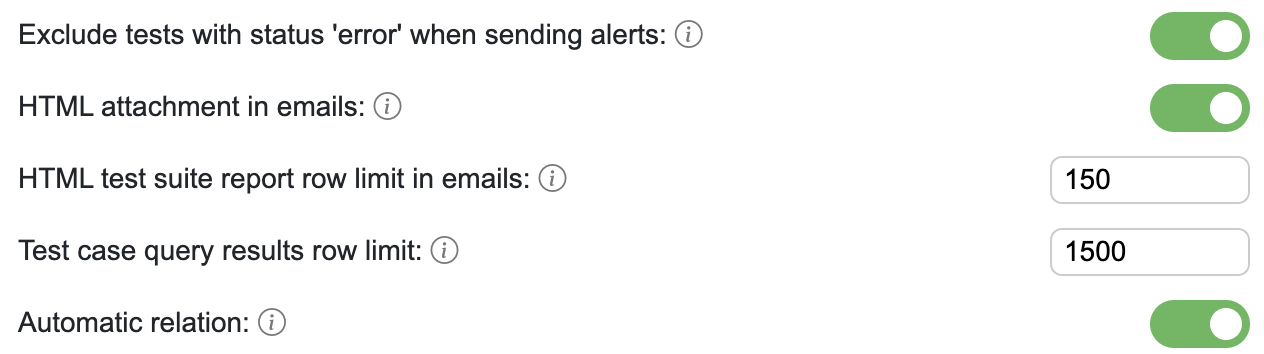
Exclude tests with status ‘error’ when sending alerts – Test cases with database error results are excluded when calculating test suite results to send alerts
Automatic relation – New test cases will have the automatic relation enabled by default
HTML attachment in emails – Full HTML reports will be included within the email
Report row limit in emails – Maximum number of detailed test rows shown in email content before the rest move to the attached report (recommended 100)
Test case query results row limit – number of test case failed results saved into CSV file, including the header row (recommended 1000). A passing execution with at least this many rows stores no file at all
Test case row limit override maximum – highest row limit a single test case can set for itself, to save more failed results than the limit above, including the header row (default 10000, no upper bound). It must not be lower than the test case query results row limit. Every saved row takes disk space for each execution kept

CSV file history (days) – Test case CSV result files kept in local file system (recommended 29)
Sample data history (days) – Catalog object sample data files kept in local file system. 0 stores nothing: the Data tab loads sample data from the source only when Refresh is clicked (recommended 29)
Test execution history (days) – Test case execution history data retention in days (recommended 60)
Test execution history (count) – Test case execution history data retention in count of executions (recommended 120)
AI suggestion decision retention (days) – How long accept/deny decisions on the AI data steward's suggestions are kept (default 365). Pruning never re-opens denied suggestions
AI suggestion decision retention (count) – Hard cap on stored decision events, newest kept (default 100000)
Profiling execution history (count) – Profiling execution history data retention in count of executions (recommended 60)
Test suite report file history (days) – Test suite report HTML files kept in local file system (recommended 29)
Alert event log history (days) – Alert event log entries kept (recommended 30)
Alert event log max rows – Maximum number of alert event log entries kept (recommended 100000)
Enable entity change history – Enable diff based change history (with version restore) for supported entities. Not available in the free version
Audit entity history (count) – Entity audit history version retention in count of versions (recommended 15); editable while entity change history is enabled
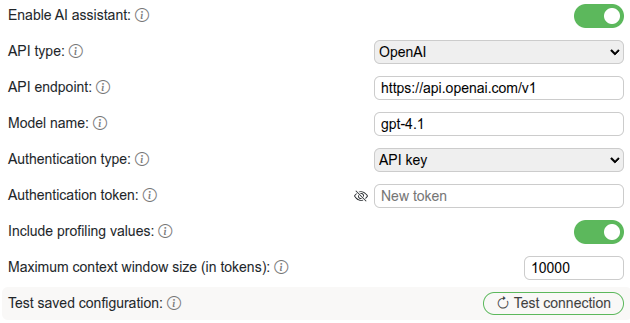
Connect the AI provider for the AI assistant. The provider is an API you provide. See AI provider setup for creating those credentials on the provider side before filling these in. The section has three groups.
AI provider. Always editable; validated on save whenever the AI assistant is enabled.
API type - OpenAI, Ollama, or Azure OpenAI.
API endpoint – AI assistant API endpoint. Local models are supported as well if you have them made available via an API. Example endpoint configurations (can vary depending on how your IT department makes the services accessible):
OpenAI -
https://api.openai.com/v1Ollama -
https://your-ollama-host:11434Azure OpenAI -
https://xxx.cognitiveservices.azure.com
Service version – Azure OpenAI only. API version for the model deployment, for example
2025-01-01-preview. Leave empty to use the latest.Model name – Name of the model that is available through the API endpoint. On Azure OpenAI this is the deployment name, not the model ID. The model has to support structured outputs via json mode. For local models, it is not suggested to use models below 7B params, the more the better.
Embedding model – The embedding model used for the semantic documentation index behind Ask AI how-to answers. Blank uses the provider's default; Azure OpenAI needs the name of an embedding deployment.
Authentication type – API authentication type, api key or none.
Authentication token – Api key value; shown when the authentication type is API key. The field always starts empty — leaving it blank keeps the stored key (changing the endpoint or API type requires entering it again).
Maximum context window size (in tokens) – Requests exceeding this token budget won't be sent to the model (minimum 10000). Selected table context counts towards the limit.
Test connection - Tests the connection with a test prompt, using the values currently in the form (including unsaved edits). Available while the AI assistant is enabled.
What the AI may see. The instance-wide limits on what a feature's Context may send. Each feature narrows further with its own Context picker (catalog enrichment, test case generation, automations).
Include profiling values - Allow profiling results (value counts, top values, patterns) to be sent where a feature's Context includes column values.
Include glossary terms - Allow the glossary terms linked to columns to be sent where a feature's Context includes assigned terms.
Include sample data values - Allow real values from the catalog (up to 20 distinct values per column, each cut to 100 characters) to be sent to the AI provider. Off by default: enabling it means actual data leaves the deployment to the configured AI provider (which may be a third party such as OpenAI). This instance-level toggle overrides the per-user opt-in, so a security team can hard-disable sample-data egress regardless of individual Refresh sample data grants.
AI assistant.
Enable AI assistant – The AI help in the editors, such as generating test cases and SQL and writing catalog descriptions. Ask AI and Automations have their own switches and need this one.
Enable Automations – Shows the Automations page, where AI automations fill in and review catalog metadata, glossary terms and test cases, with its Suggestions queue, and the Automations tab of the role dialog. Off by default (an upgrade switches it on where automations already exist). Turning it off hides both and stops scheduled runs; automations, schedules and suggestions are kept. Needs the AI assistant and a valid license.
Build semantic docs index – Embeds the bundled documentation once through the configured provider so how-to questions can match pages by meaning. The status line says whether the index is built and for which model; it goes stale when the provider, the embedding model or the product version changes, and search falls back to full-text until it is rebuilt.
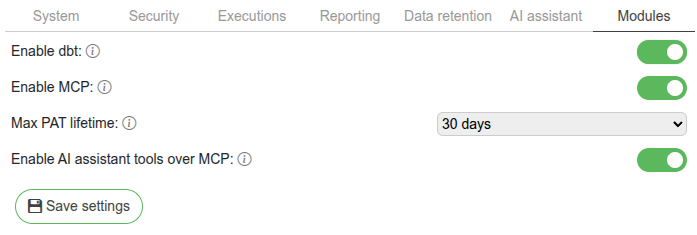
Module toggles enable optional integrations. Changes here require an application restart to take full effect.
Enable dbt – exposes the dbt integration tab and dbt-related features. See dbt setup.
Enable MCP – exposes the SelectZero MCP server and catalog tools. Not available in the free version
Enable AI assistant tools over MCP – exposes AI assistant test-case suggestions through MCP. Requires the AI assistant to be configured. Editable only while Enable MCP is on.
Max PAT lifetime – caps the choices available in the personal access token creation dialog (1, 7, 14, or 30 days). Admins are not capped when issuing their own PATs and can select longer lifetimes up to 1 year or no expiry. Editable only while Enable MCP is on.